
Overview
The Wiz integration allows autobotAI to connect with Wiz's cloud security platform, enabling comprehensive visibility and management of security risks across your cloud infrastructure. Access vulnerability assessments, misconfigurations, and compliance findings to identify and remediate security issues while maintaining a strong security posture across AWS, Azure, GCP, and other cloud platforms.
This guide provides instructions for setting up an integration with Wiz in your autobotAI account. By completing this process, you will connect your wiz account and its associated resources to the platform.
Prerequisites
Before starting, ensure you have:
- A Wiz Account with the necessary administrative privileges
Steps to Set Up Wiz Integration
Step 1:
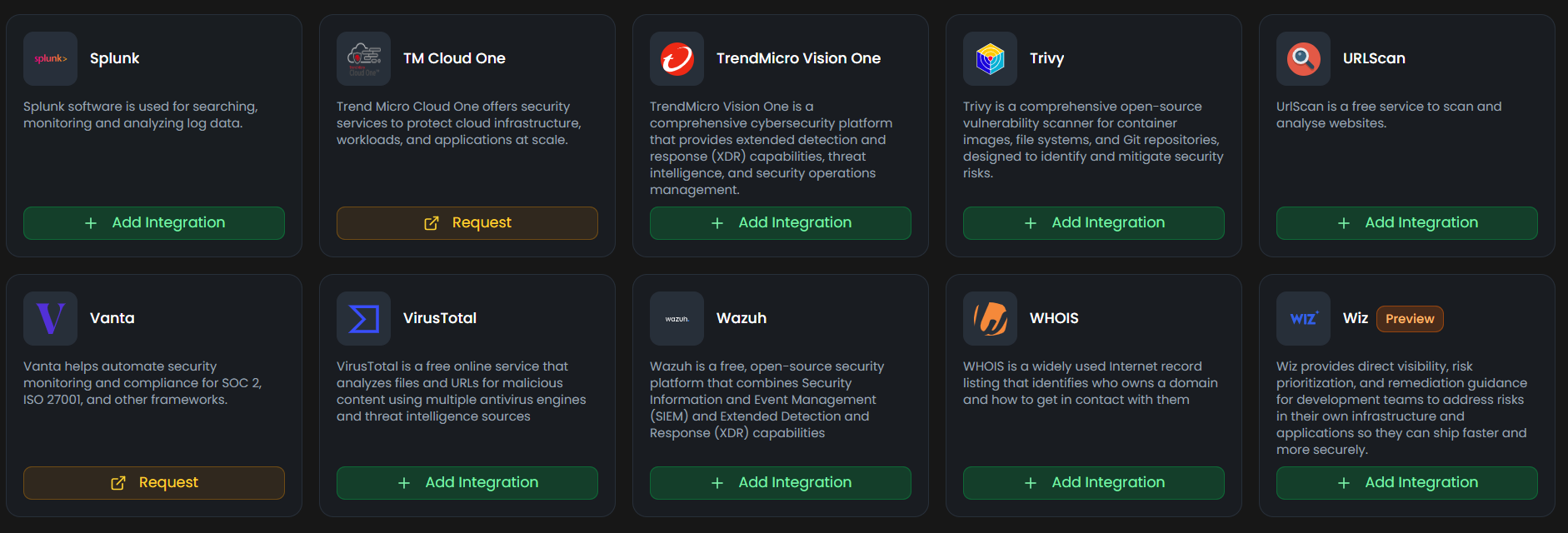
Navigate to the Integrations page by selecting Integrations from the menu. Click the + Add Integration button in the top-right corner to view the list of available integrations.

Step 2:
From the list, under the Security Tools section, select Wiz + Add to create the Wiz integration.
Note: Fields marked with an asterisk (*) are mandatory.
- Alias: Provide a meaningful name or alias for this integration.
- Tag(Optional): Choose a tag to help organize the integration.
- Client Id: Enter your client id
- Client Secret: Enter your client secret
- URL: Enter your url
Verify the information, then click Create to complete the integration.
Step 4:
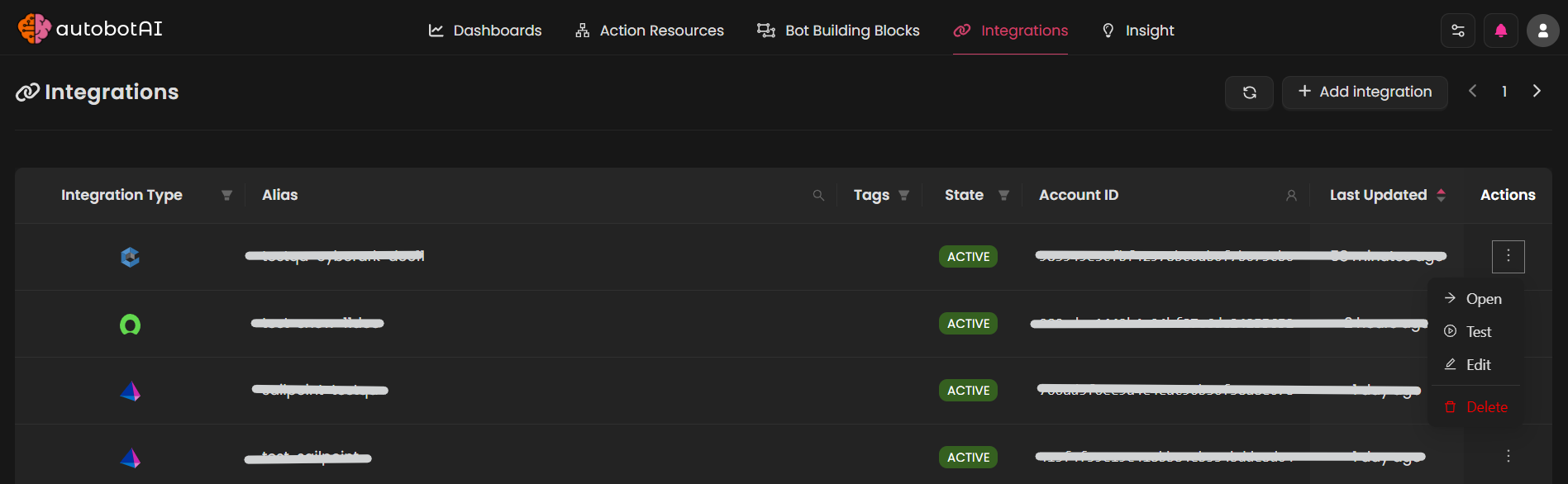
After the integration is successfully created, locate it under Integrations. Click on the three dots on the left side and select Test to ensure your integration is properly configured with autobotAI.
Additional Information
How to Obtain the Client ID and Client Secret
Use the following steps to generate a client ID and the client secret by creating a service account in Wiz:
- Log in to the Wiz portal as and administrator.
- Navigate to Settings > Service Accounts > Add Service Account.
- Specify a name for the service account.
- Select the permission read:resources and click Add Service Account.
- Copy the Client ID and Client Secret.
How to Obtain the Base URL
Use the following steps to obtain the Wiz API URL or the Base URL:
- Click your initials at the upper right corner of the Wiz console.
- Select Tenant Info.
- Under Tenant Info you can find your API Endpoint URL.