
Overview
The Orca Security integration enables autobotAI to interact with Orca's agentless Cloud-Native Application Protection Platform (CNAPP). With this integration, you can fetch and analyze alerts, vulnerabilities, misconfigurations, malware, and IAM risks across your multi-cloud environments via the Orca REST API.
This guide provides instructions for setting up the Orca Security integration in your autobotAI account.
Prerequisites
Before starting, ensure you have:
- An active Orca Security account.
- An Orca Security API Token with sufficient permissions (Viewer role).
Instructions for retrieving your API Token can be found in the Additional Information section.
Steps to Set Up Orca Security Integration
Step 1:
Navigate to the Integrations page by selecting Integrations from the menu. Click the + Add Integration button in the top-right corner to view available integrations.

Step 2:
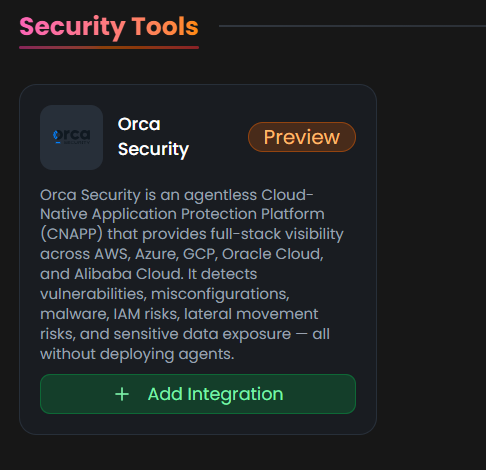
From the list, under Security Tools, select Orca Security + Add to create the Orca Security integration.
Step 3:
Fill in the required fields as follows:
Note: Fields marked with an asterisk (*) are mandatory.
-
Alias: Provide a meaningful name or alias for this integration (e.g.,
Orca-US). -
Tag(Optional): Choose a tag to help organize the integration.
-
API Token: Enter your Orca Security API Token.
-
Region / Base URL: Select the region that matches your Orca Security tenant (e.g., US, Europe, Australia, India, Israel).
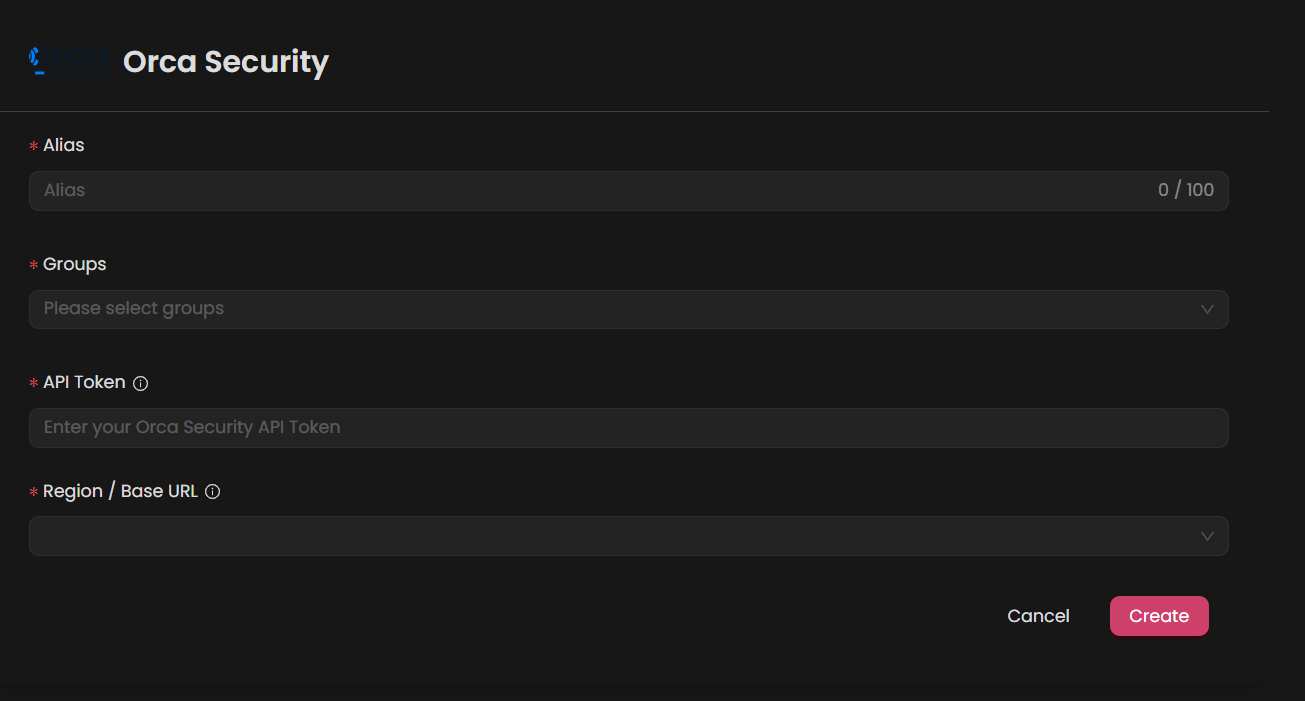
Double-check the information, then click Create to complete the integration.
After creating the integration, locate it under Integrations. Click the Play (▶) button in the Actions column to test and ensure your integration is configured correctly with autobotAI.

Additional Information
How to Retrieve Orca Security API Token
To get your Orca Security API Token, follow these steps:
-
Log in to Orca Security:
- Go to your Orca Security tenant dashboard and sign in with your account credentials.
-
Access API Settings:
- Navigate to Settings → Users & Permissions → API.
-
Generate the API Token:
- Click Add API Token.
- Ensure the token is assigned at least the Viewer role.
- Copy the token directly from the dashboard.
-
Paste the API Token:
- Enter the API token into the API Token field on the autobotAI platform to complete the integration.
Once the API Token is added, test the integration to confirm functionality and connectivity with Orca Security.