
Overview
The Proofpoint TRAP (Threat Response Auto-Pull) integration allows autobotAI to interact with your Proofpoint TRAP instance to automate remediation actions. This integration enables automated workflows such as querying incident data, managing blocklists, and pulling malicious emails directly from user inboxes based on security alerts.
This guide provides instructions for setting up the Proofpoint TRAP integration in your autobotAI account. By completing this process, you will connect your TRAP appliance to the platform.
Prerequisites
Before starting, ensure you have:
- A Proofpoint TRAP appliance or hosted instance.
- The Base URL of your TRAP instance (e.g.,
https://trap.company.com). - A Service Principal (Client ID) generated in the TRAP dashboard.
- The Service Secret associated with your Principal.
Steps to Set Up Proofpoint TRAP Integration
Navigate to the Integrations page by selecting Integrations in the menu. Click the + Add Integration button in the top-right corner to view available integrations.

Use the search bar to search for the keyword proofpoint, and select Proofpoint TRAP + Add from the results to create the integration.
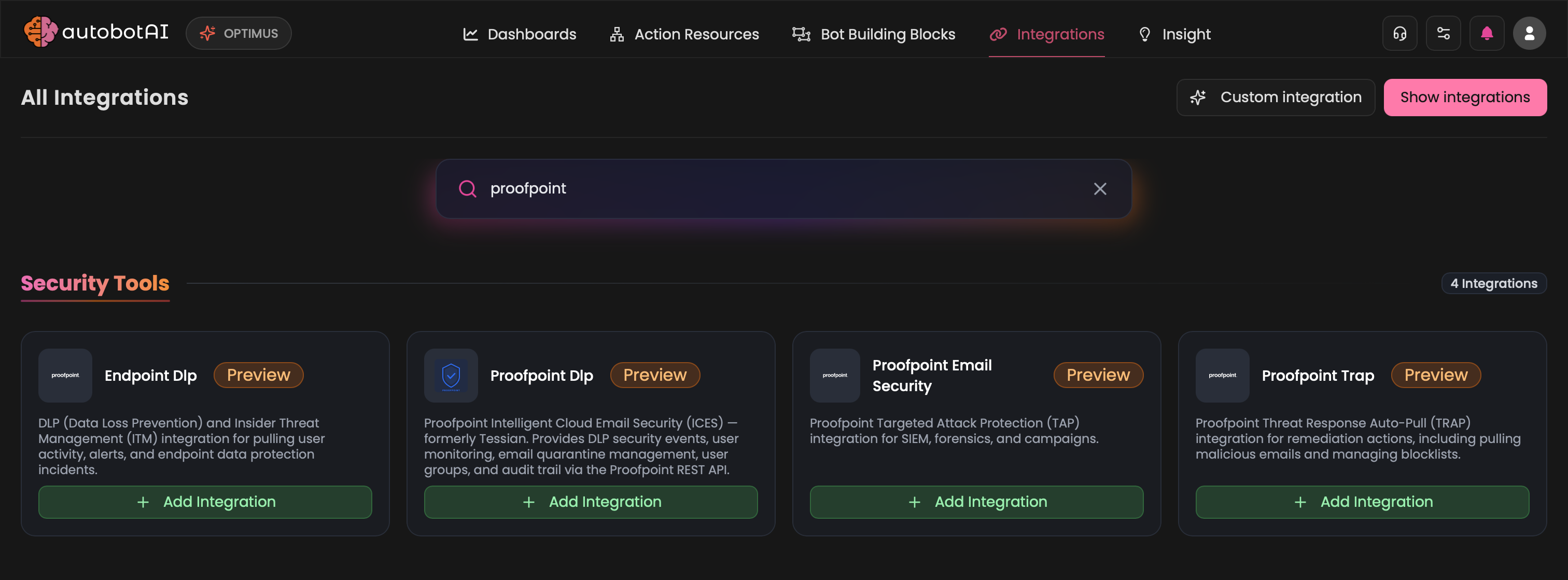
Step 3:
Fill in the required fields as follows:
Note: Fields marked with an asterisk (*) are mandatory.
- Alias: Provide a meaningful name or alias for this integration (e.g.,
Trap-Prod). - Tag(Optional): Choose a tag to help organize the integration.
- Base URL: Enter your TRAP Base URL (e.g.,
https://trap.company.com). - Service Principal: Provide your Proofpoint TRAP Service Principal (e.g.,
sp-4f2a9b...). - Service Secret: Provide the Secret for your Service Principal (e.g.,
abc123xyz...).
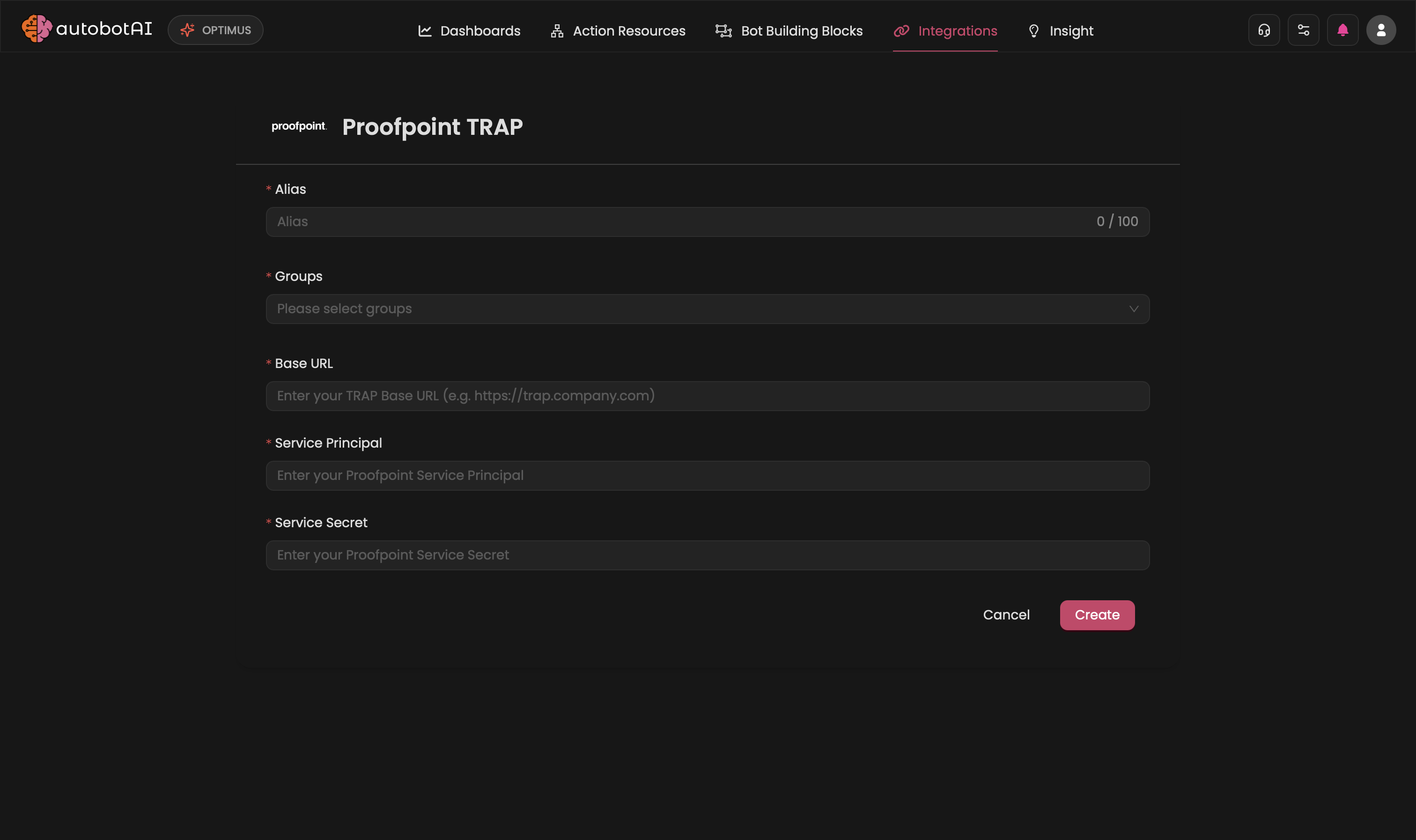
Double-check the information, then click Create to complete the integration.
Step 4:
After creating the integration, locate it under Integrations. Click the Play (▶) button in the Actions column to test and ensure your integration is configured correctly. The test will perform a lightweight API call to the /api/incidents endpoint to verify connectivity and credentials.
Additional Information
How to Retrieve TRAP Credentials
To generate your TRAP Service Principal and Secret:
- Log in to your Proofpoint TRAP appliance dashboard.
- Navigate to Settings > Access Management (or the API / Connected Applications section).
- Create a new Service Principal and ensure it has the necessary API permissions for incident management.
- Copy the generated Principal and Secret immediately and paste them into autobotAI.