
Bot Executions
Overview
The Bot Executions section in autobotAI provides an overview of all bots that are currently running, as well as the history of past executions. Here, you can monitor the status of each bot, view the last execution time, and gain insights into bot performance. This helps in tracking bot activity and troubleshooting any issues.
Accessing Bot Executions in autobotAI
To view bot executions in autobotAI:
-
Navigate to Action Resources:
- In the autobotAI page, go to the Action Resources section in the main menu.
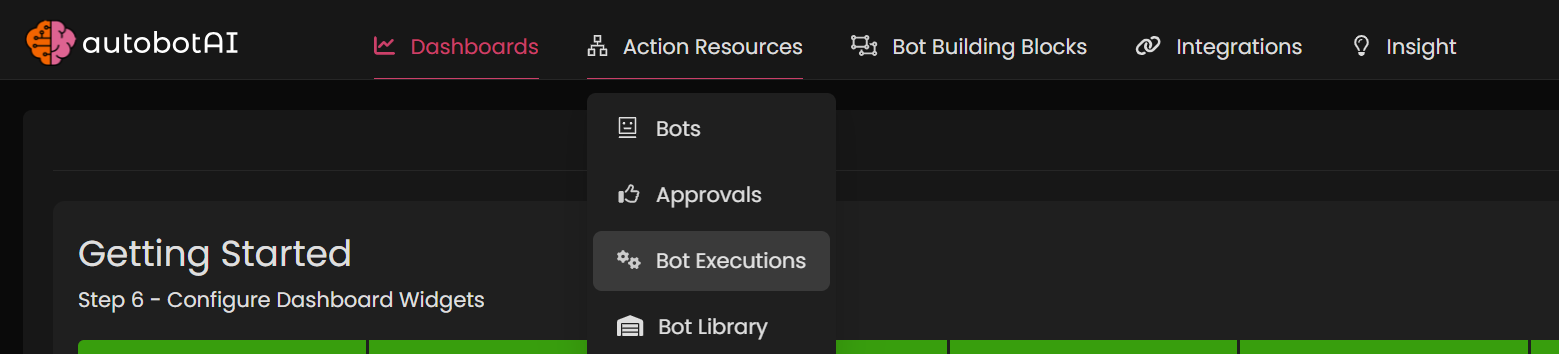
- In the autobotAI page, go to the Action Resources section in the main menu.
-
Select Bot Executions:
- In the dropdown list, select Bot Executions. This will display a table with details of all bot executions associated with your account.
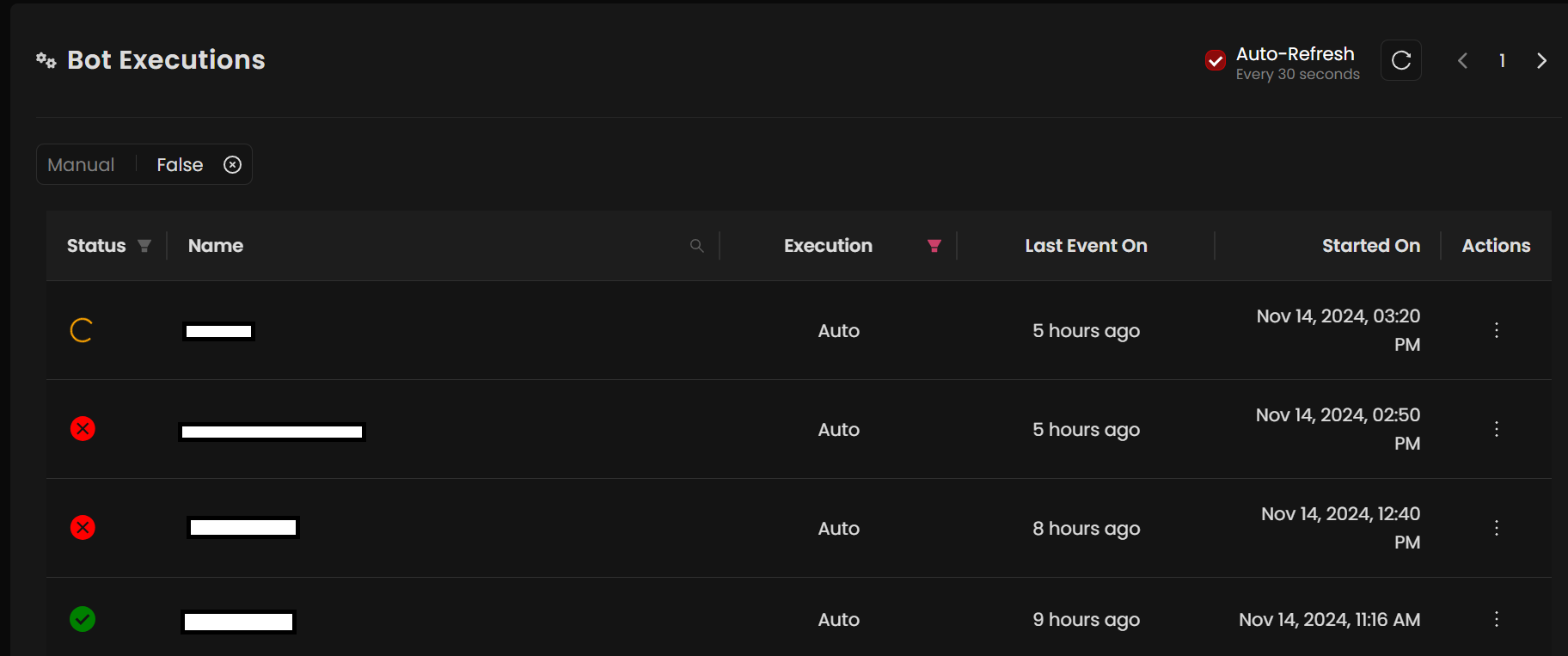
- In the dropdown list, select Bot Executions. This will display a table with details of all bot executions associated with your account.
Understanding the Bot Executions Table
The table provides the following information for each bot execution:
- Status: Displays the current status of the bot (e.g., Running, Completed, Failed).
- Name: The name of the bot.
- Execution: Specifies if the execution was triggered automatically or manually.
- Last Event On: The timestamp of the last recorded event for this execution.
- Started On: The timestamp when the bot execution started.
- Actions: Additional options for managing the bot execution.
You can use this section to monitor bot performance and quickly identify any executions that may require attention.
Responsible AI: Explainability & Auditability
Bot Executions in autobotAI provide complete transparency into every automation action, ensuring every bot run is auditable and explainable.
What's Captured in Execution History
For every bot execution, autobotAI logs comprehensive details:
- Execution Timestamp: Exact time bot started and completed
- Bot Status: Success, warning, error, or pending approval
- Actions Taken: Each step the bot performed with specific details
- Triggered By: Who or what initiated the bot (manual user, scheduled, or event)
- Credentials Used: Which service account or credentials were used
- Results: What changed in target systems and what was returned
- Duration: How long each step took
- Affected Resources: Complete list of what was changed and how
Why This Matters for Responsible AI
Explainability: Customer can see exactly what data was checked, what decision criteria were applied, and why the bot made its recommendation.
Auditability: Complete trail of who triggered the bot, what it accessed, what it decided, and what the results were—all timestamped and traceable.
Accountability: When actions are approved or executed, they're linked to this execution record, creating clear responsibility.
Compliance: Audit logs prove timely detection and appropriate response to issues, supporting compliance requirements.
How to Review Execution Logs
Follow these steps to understand what your bots are doing:
-
Navigate to Bot Executions
- Go to Action Resources in the main menu
- Select Bot Executions from the dropdown
-
Click on any bot execution to see full details
-
Review the action sequence to understand bot logic
- What data sources were queried?
- What rules or conditions were applied?
- What decisions were made at each step?
-
Check affected resources to see what was changed
-
Verify credentials used were appropriate for the action
-
Use timestamps to correlate with other events or incidents
Searching and Filtering for Audit Purposes
Find specific execution records using:
- Filter by bot name: Find all runs of a specific bot
- Filter by status: Find successes, failures, or pending approvals
- Filter by date range: Find executions during specific time periods
- Search by resource affected: Find which bots touched a specific resource
- Group by approval status: Find pending decisions or approved actions
- Export execution history: Generate audit reports for compliance
Note: Keep execution history for audit trails and compliance investigations. The complete log provides evidence of what happened, who authorized it, and why.