
Overview
The MXToolbox integration allows autobotAI to query MXToolbox's diagnostic, lookup, and network verification tools. By connecting MXToolbox, you can automate critical network and email security checks such as DNS records verification, blacklist detection, SPF/DKIM validation, and SMTP diagnostic tests.
This guide provides step-by-step instructions for configuring the MXToolbox integration in your autobotAI account.
Steps to Set Up MXToolbox Integration
Step 1:
Navigate to the Integrations page by selecting Integrations from the left menu. Click the + Add Integration button in the top-right corner.
Step 2:
Scroll to the Security Tools section, locate the MXToolbox card, and select + Add to begin.
Step 3:
Fill in the required integration details:
- Alias*: Provide a clear name or identifier for this integration instance (e.g.,
MXToolbox-Prod). - Tag(Optional): Choose a tag to help organize the integration.
- API Key*: Enter your MXToolbox API key.
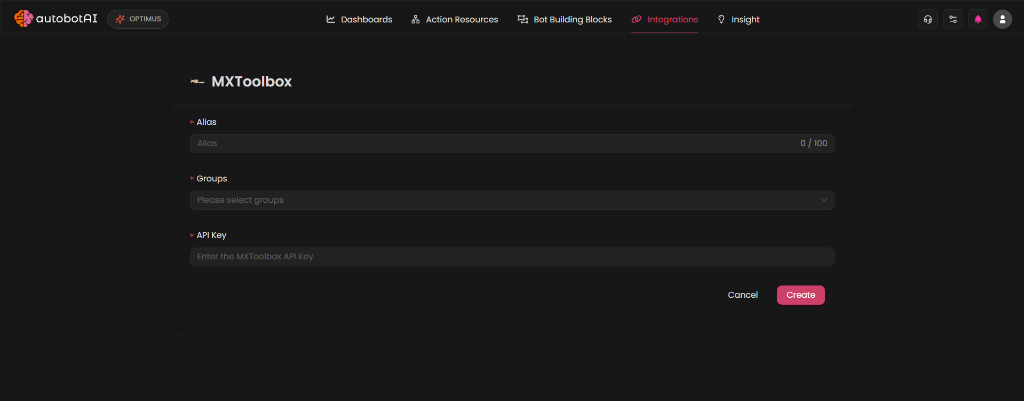
Verify the information and click Create to complete.
Step 4:
Once created, locate the integration under your active list. Click the three dots next to it, select Test, and ensure the status returns a successful validation.
Additional Information
How to Retrieve Your MXToolbox API Key
To get your API key, follow these steps:
-
Log in to MXToolbox:
Go to MXToolbox and log in with your credentials. -
Access the API Settings:
Navigate to your Account settings and select the API tab or go directly to the MXToolbox API settings. -
Generate / Copy the API Key:
Copy your existing API Key or click Generate New API Key if you don't have one yet.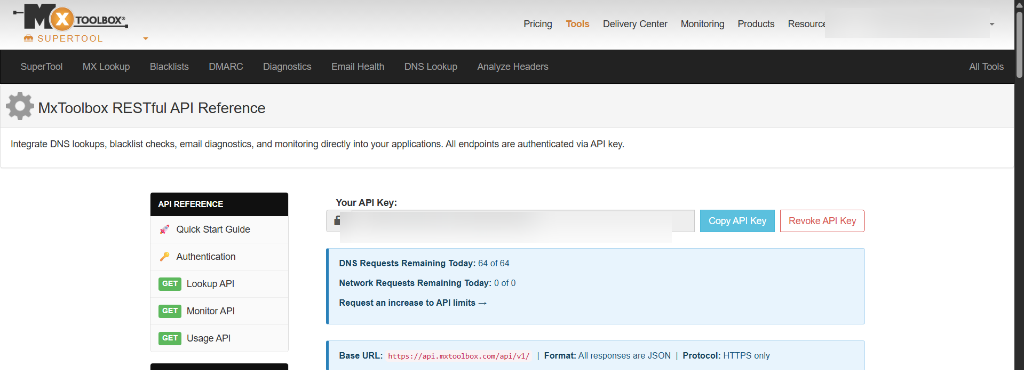
Copy this key and paste it into the API Key field in autobotAI to complete the setup.