
Overview
The Endpoint DLP integration (also known as Proofpoint Insider Threat Management or ITM SaaS) enables autobotAI to interact directly with your Proofpoint endpoint data protection platform. This integration allows you to automate workflows to pull user activity, analyze alerts, and manage endpoint data protection incidents directly from your environment.
This guide provides instructions for setting up the Endpoint DLP integration in your autobotAI account. By completing this process, you will connect your ITM SaaS tenant to the platform.
Prerequisites
Before starting, ensure you have:
- An active Proofpoint ITM SaaS tenant.
- The Base URL of your specific tenant (e.g.,
https://<tenant>.itmsaas.proofpoint.com). - An API Client ID and Client Secret generated from your ITM console for OAuth 2.0 authentication.
Steps to Set Up Endpoint DLP Integration
Navigate to the Integrations page by selecting Integrations in the menu. Click the + Add Integration button in the top-right corner to view available integrations.

Use the search bar to search for the keyword proofpoint, and select Endpoint DLP + Add from the results to create the integration.
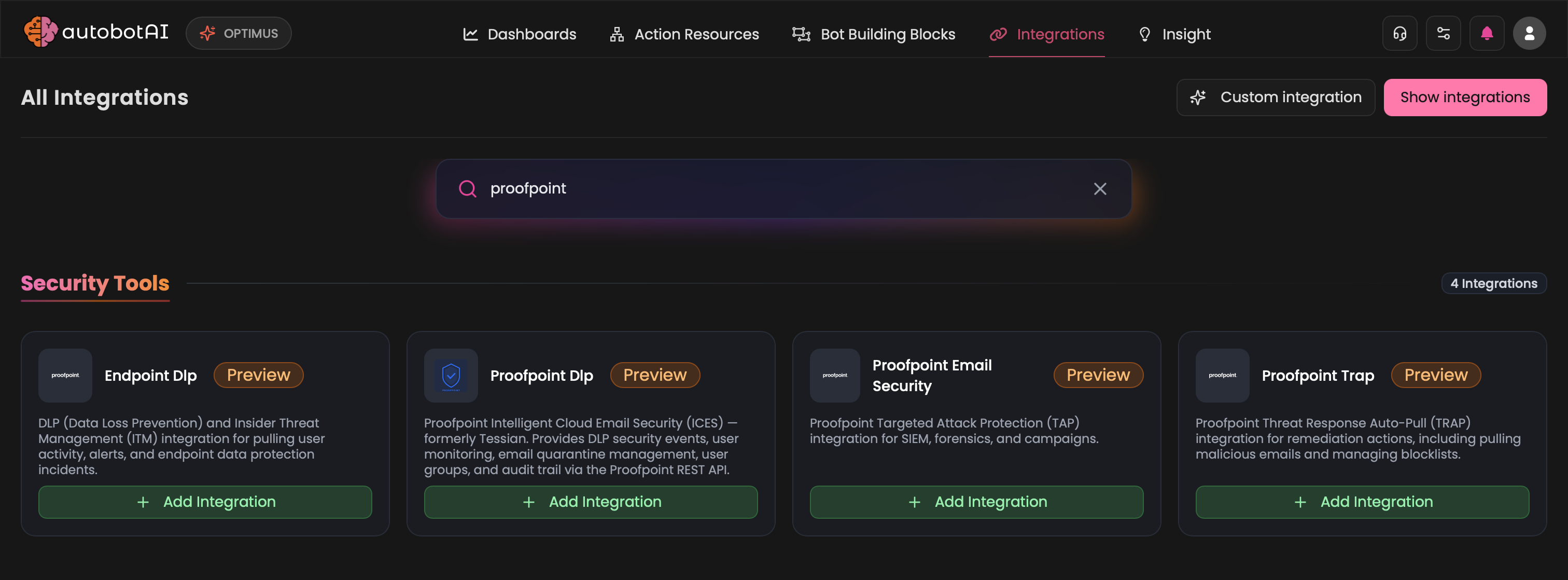
Step 3:
Fill in the required fields as follows:
Note: Fields marked with an asterisk (*) are mandatory.
- Alias: Provide a meaningful name or alias for this integration (e.g.,
ITM-Endpoint-Prod). - Tag(Optional): Choose a tag to help organize the integration.
- Base URL: Enter your ITM SaaS URL (e.g.,
https://mycompany.itmsaas.proofpoint.com). - Client ID: Enter your Proofpoint ITM API Client ID (e.g.,
client_789abc...). - Client Secret: Enter your Proofpoint ITM API Client Secret (e.g.,
s3cr3tKey...).
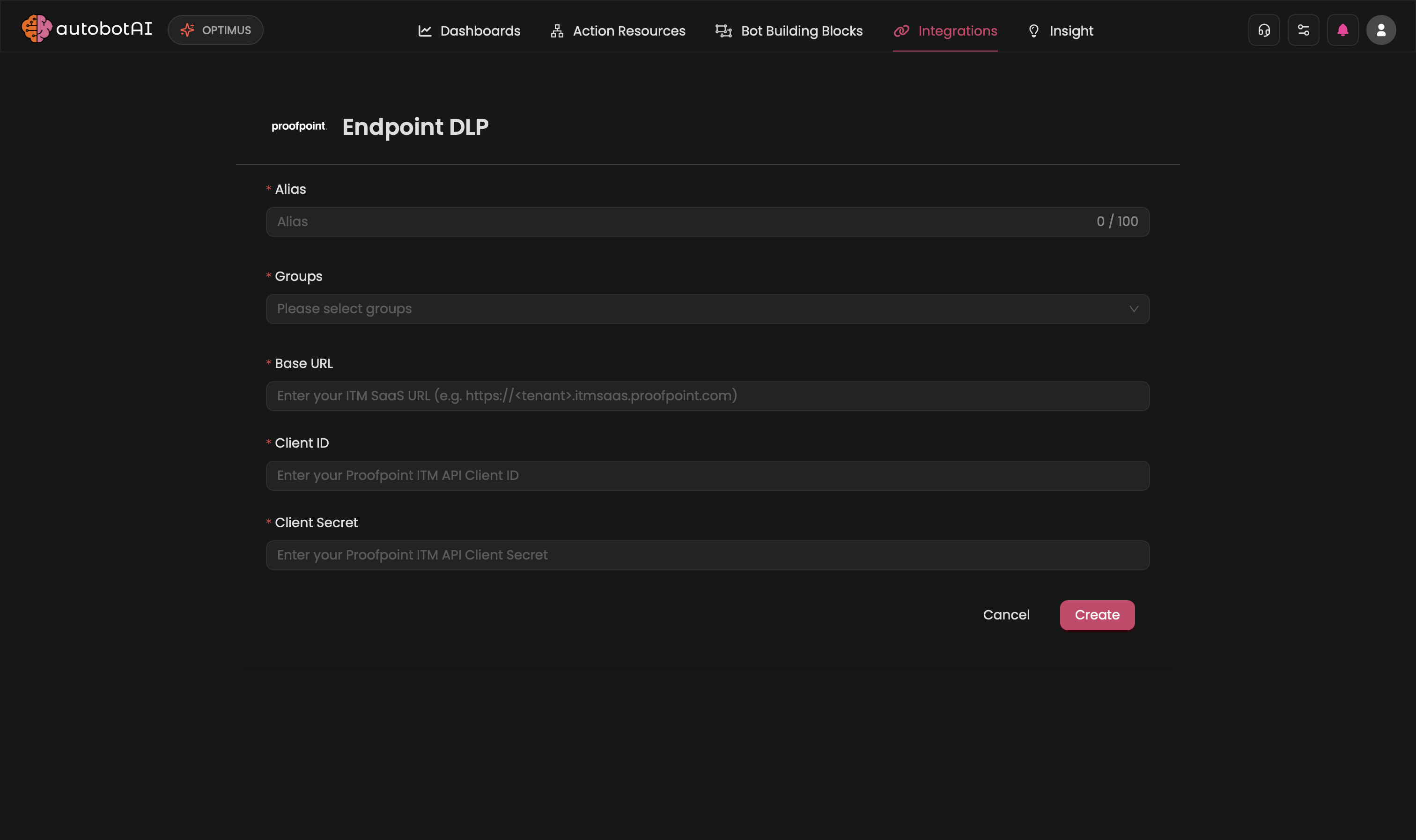
Double-check the information, then click Create to complete the integration.
Step 4:
After creating the integration, locate it under Integrations. Click the Play (▶) button in the Actions column to test and ensure your integration is configured correctly. The test securely generates a temporary OAuth Bearer token and queries the /v2/alerts endpoint to explicitly verify your scopes and connectivity.
Additional Information
How to Retrieve ITM Client Credentials
To generate your Proofpoint ITM OAuth credentials:
- Log in to your ITM SaaS Console:
Access your tenant dashboard. - Access API Management:
- Navigate to the Administration or Developer settings section where API credentials are managed.
- Generate OAuth Credentials:
- Create a new API Client.
- Ensure it has the necessary scopes for retrieving alerts and explorations.
- Copy the Credentials:
Copy the Client ID and Client Secret immediately, as the secret will not be fully visible again after closing the dialog.
Paste these into the respective fields on the autobotAI platform, along with your specific Tenant Base URL, to complete the integration.