
Overview
The Palo Alto Strata Cloud Manager integration allows autobotAI to connect with Palo Alto Networks Strata Cloud Manager (SCM), a centralized, AI-powered management platform for next-generation firewalls (NGFWs) and Prisma Access. This integration enables automated security policy management, device configuration retrieval, and compliance workflow orchestration across your entire Palo Alto Networks infrastructure.
This guide provides instructions for setting up Palo Alto Strata Cloud Manager integration in your autobotAI account. By completing this process, you will connect your Strata Cloud Manager Account and its associated resources to the platform.
Prerequisites
Before starting, ensure you have:
- An active Palo Alto Networks account with access to Strata Cloud Manager
- A Service Account created in SCM with an appropriate role assigned
- Your Tenant Service Group (TSG) ID: the numeric identifier scoping your API access
Steps to Set Up Palo Alto Strata Cloud Manager Integration
Step 1:
Navigate to the Integrations page by selecting Integrations from the menu. Click the + Add Integration button in the top-right corner to view available integrations.

Step 2:
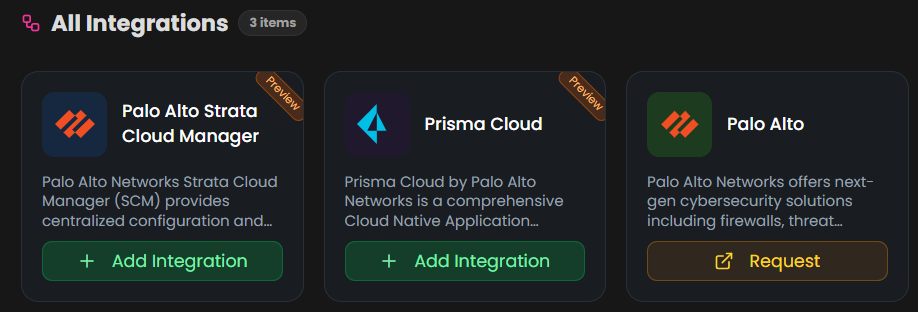
From the list, under Security Tools section, select Palo Alto Strata Cloud Manager + Add to create the Palo Alto Strata Cloud Manager integration.
Step 3:
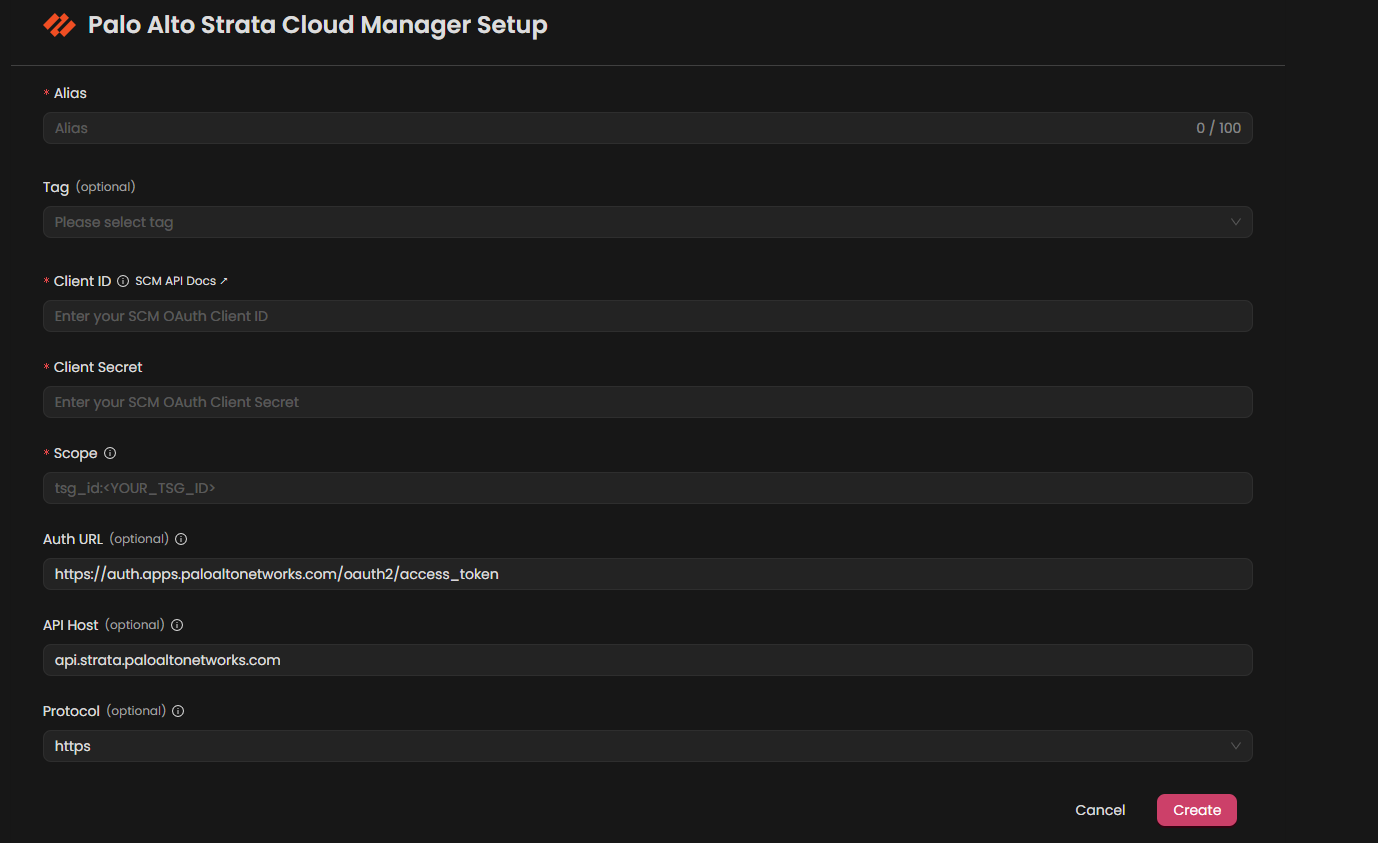
Fill in the required fields as follows:
Note: Fields marked with an asterisk (*) are mandatory.
- Alias* : Provide a meaningful name or alias for this integration.
- Tag(Optional): Choose a tag to help organize the integration.
- Client ID* : Enter the Client ID from your SCM service account.
- Client Secret* : Enter the Client Secret from your SCM service account.
- Scope* : Enter the OAuth scope in the format
tsg_id:<YOUR_TSG_ID>(e.g.,tsg_id:1234567890). - Auth URL (optional): The authentication URL (defaults to
https://auth.apps.paloaltonetworks.com/oauth2/access_token). - API Host (optional): The API host URL (defaults to
api.strata.paloaltonetworks.com).
Verify the information, then click Create to complete the integration.
Step 4:
After creating the integration, locate it under Integrations. Click the Test (▶) button in the Actions column to test and ensure your integration is configured correctly with autobotAI.

Additional Information
How to Generate SCM Service Account Credentials
A service account is used to provide the credentials needed for generating an access token. You also assign roles to service accounts to identify what API actions they can take.
Important: Before you create a service account, you must have created at least one TSG. The service account is added as a user to that TSG.
There are two ways to create a service account:
1. By using the Strata Cloud Manager user interface
To do this, follow the procedure described in Add a Service Account through Common Services:
- Login: Log in to Strata Cloud Manager with your Palo Alto Networks account.
- Navigate to Identity & Access: Go to Settings → Identity & Access Management → Service Accounts.
- Create a Service Account: Click Add Service Account, provide a name, and assign an appropriate role.
- Copy Credentials: Once created, copy the Client ID and Client Secret. Store the secret securely: it will not be shown again.
2. By using the Identity and Access Management APIs
To create a service account using the Identity and Access Management API, you must have already created at least one service account using the User Interface, and then obtained an access token for that account.
To create a service account using the Identity and Access Management API, use the create a Service Account API. The Client ID and Client Secret for this account is returned in the response payload.
How to Find Your TSG ID
Your Tenant Service Group (TSG) ID is visible:
- In the URL of your SCM portal after login, or
- Under Settings → Tenant in the SCM console.
The scope format must be exactly: tsg_id:<YOUR_TSG_ID>