
Overview
The AlienVault OTX integration allows autobotAI to connect with the AlienVault Open Threat Exchange (OTX) service to gather threat intelligence data, including Indicators of Compromise (IoCs) such as malicious IPs, domains, and file hashes. This integration helps improve security by identifying threats and enabling appropriate actions.
This guide provides instructions for setting up the AlienVault OTX integration in your autobotAI account.
Prerequisites
Before starting, ensure you have:
- An AlienVault OTX account.
- An AlienVault OTX API Key for accessing threat intelligence data.
Instructions for retrieving your API key can be found in the Additional Information section.
Steps to Set Up AlienVault OTX Integration
Step 1:
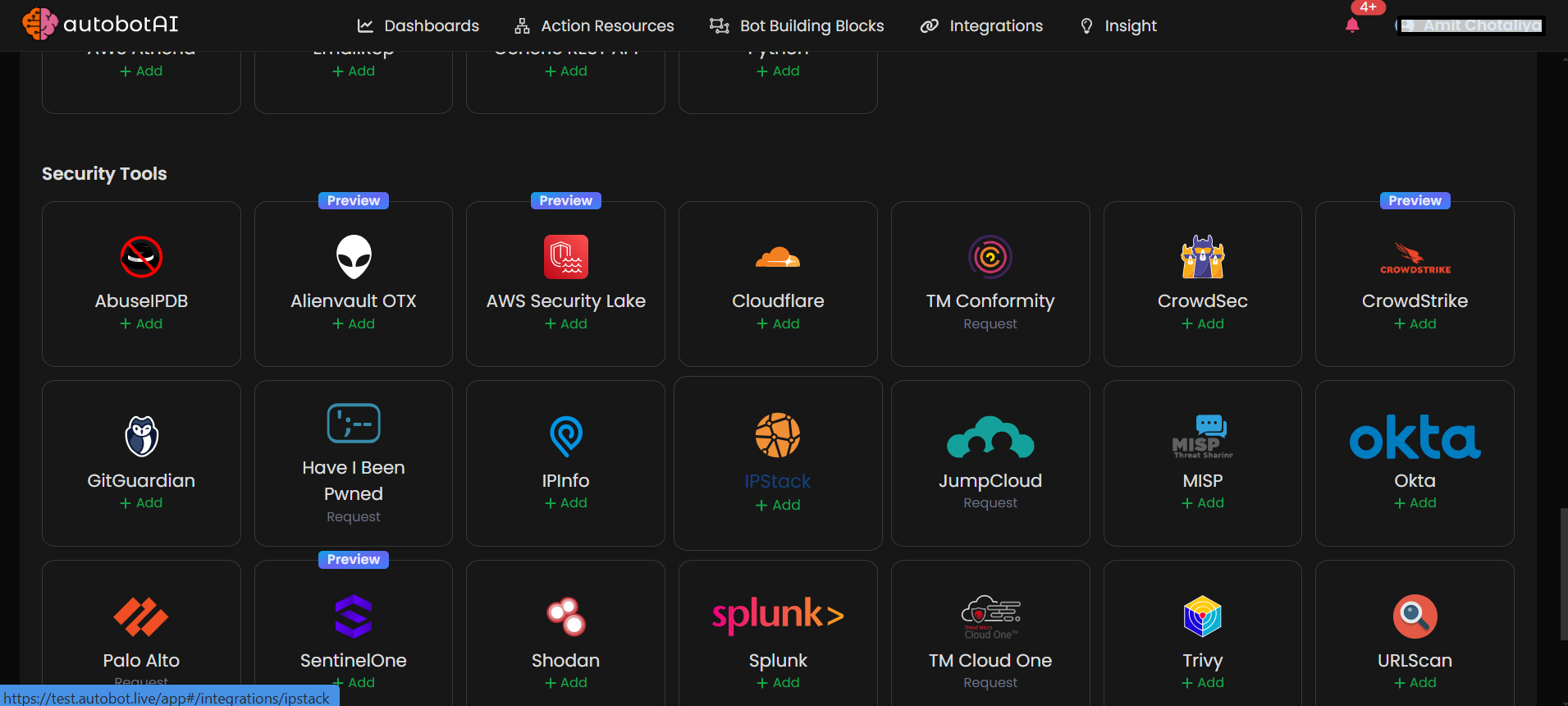
Navigate to the Integrations page by selecting Integrations from the menu. Click the + Add Integration button in the top-right corner to view available integrations.

Step 2:
From the list, under Security Tools, select AlienVault OTX + Add to create the AlienVault OTX integration.
Step 3:
Fill in the required fields as follows:
Note: Fields marked with an asterisk (*) are mandatory.
- Alias: Provide a meaningful name or alias for this integration.
- Tag(Optional): Choose a tag to help organize the integration.
- API Key: Enter your AlienVault OTX API key. You can find this in your AlienVault OTX account settings under the API section.
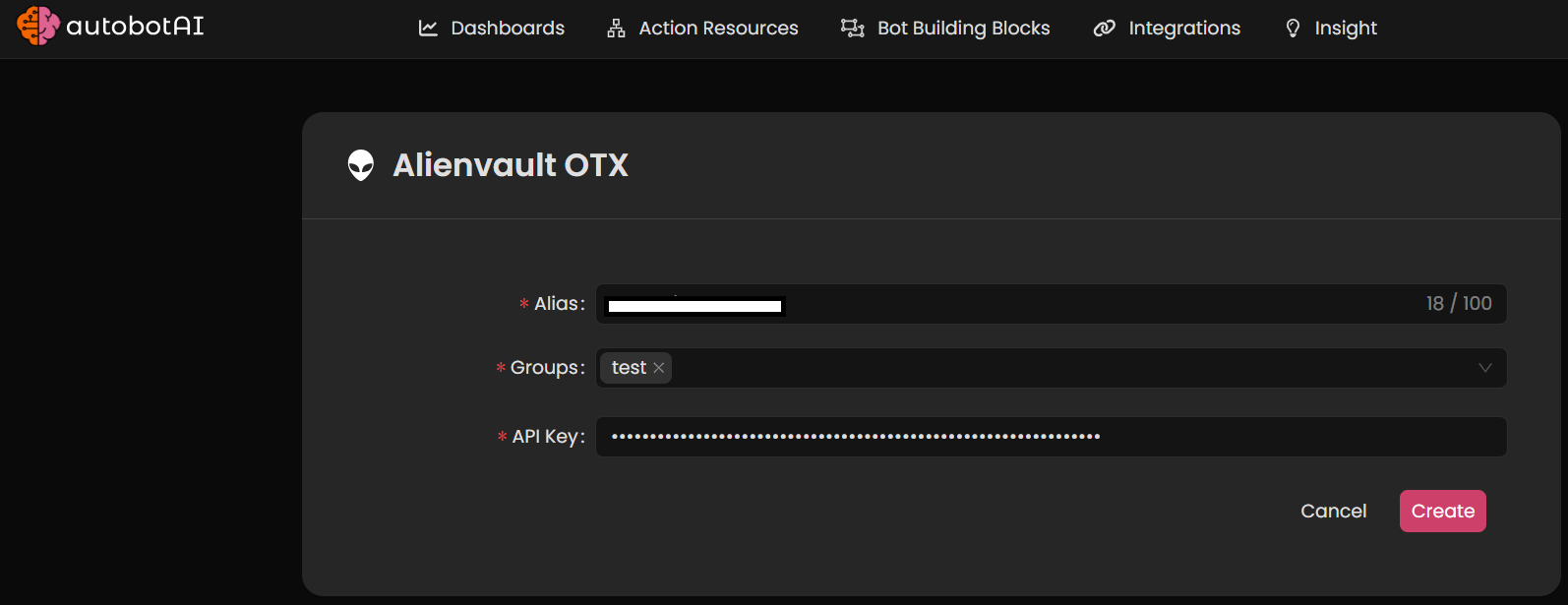
Double-check the information, then click Create to complete the integration.
Step 4:
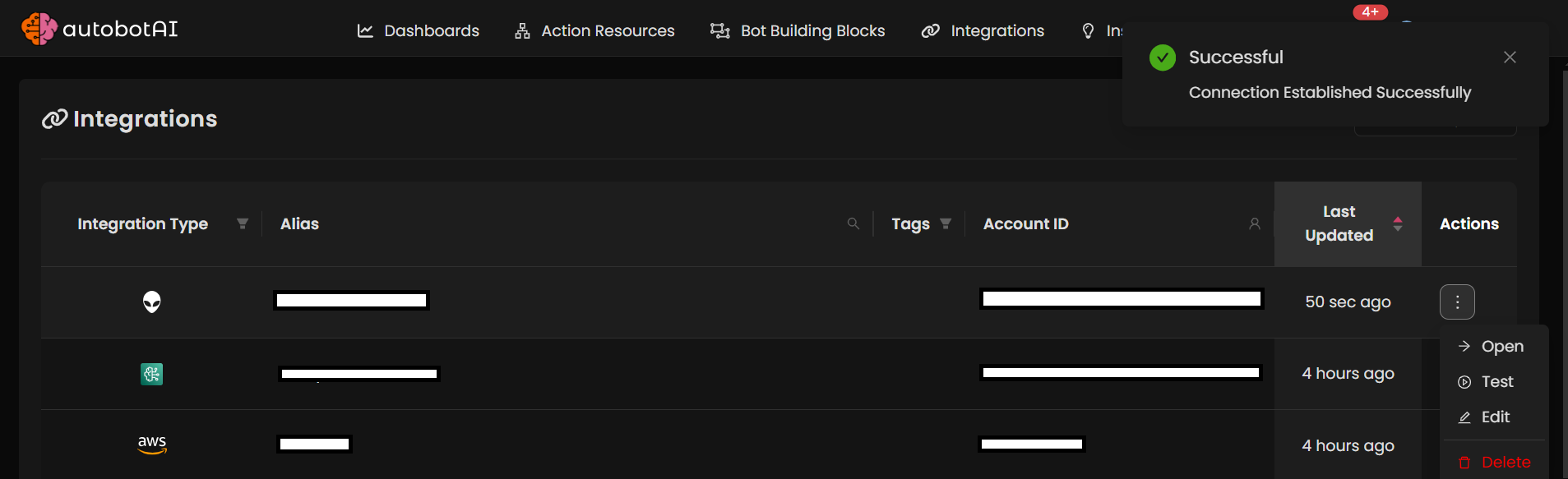
After creating the integration, locate it under Integrations. Click on the three dots next to it, select Test, and ensure your integration is configured correctly with autobotAI.
Additional Information
How to Retrieve AlienVault OTX API Key
To get your AlienVault OTX API Key, follow these steps:
-
Access the API Key:
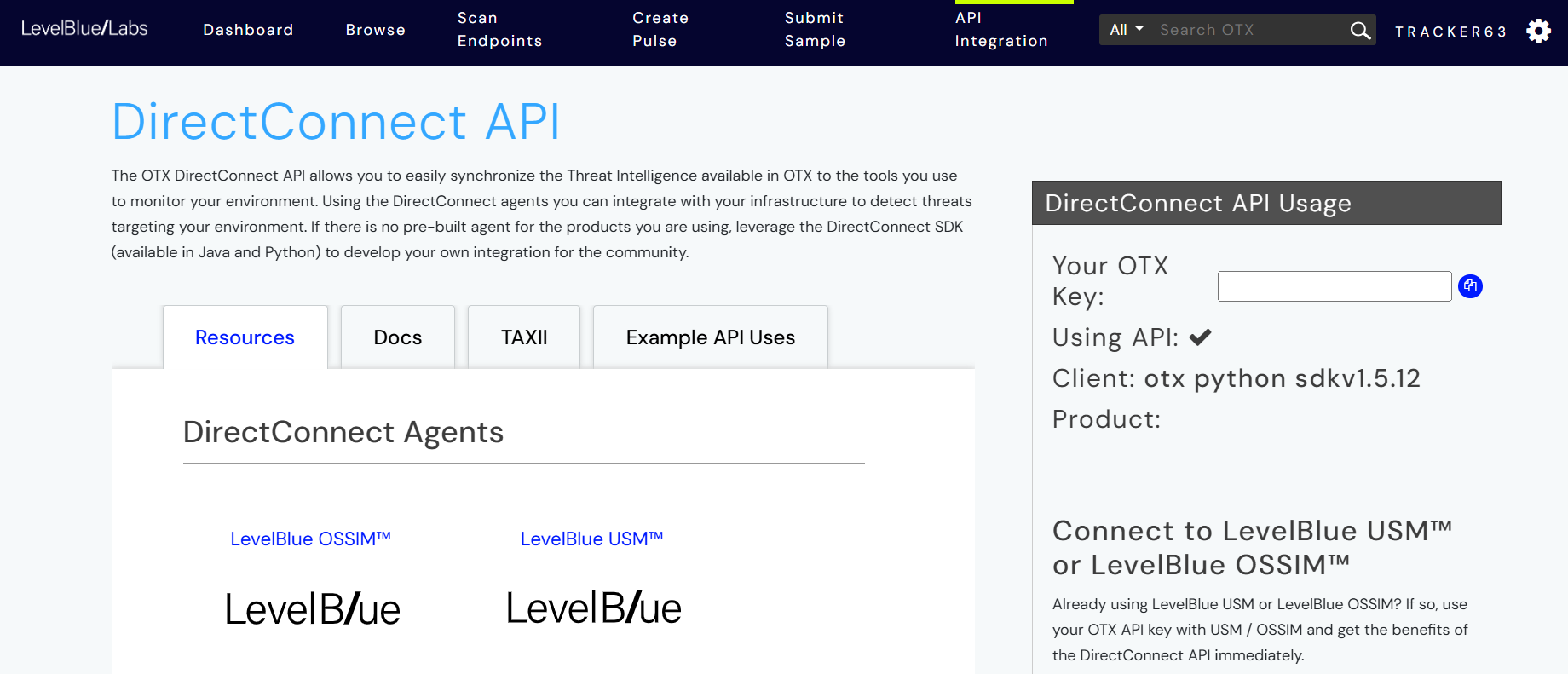
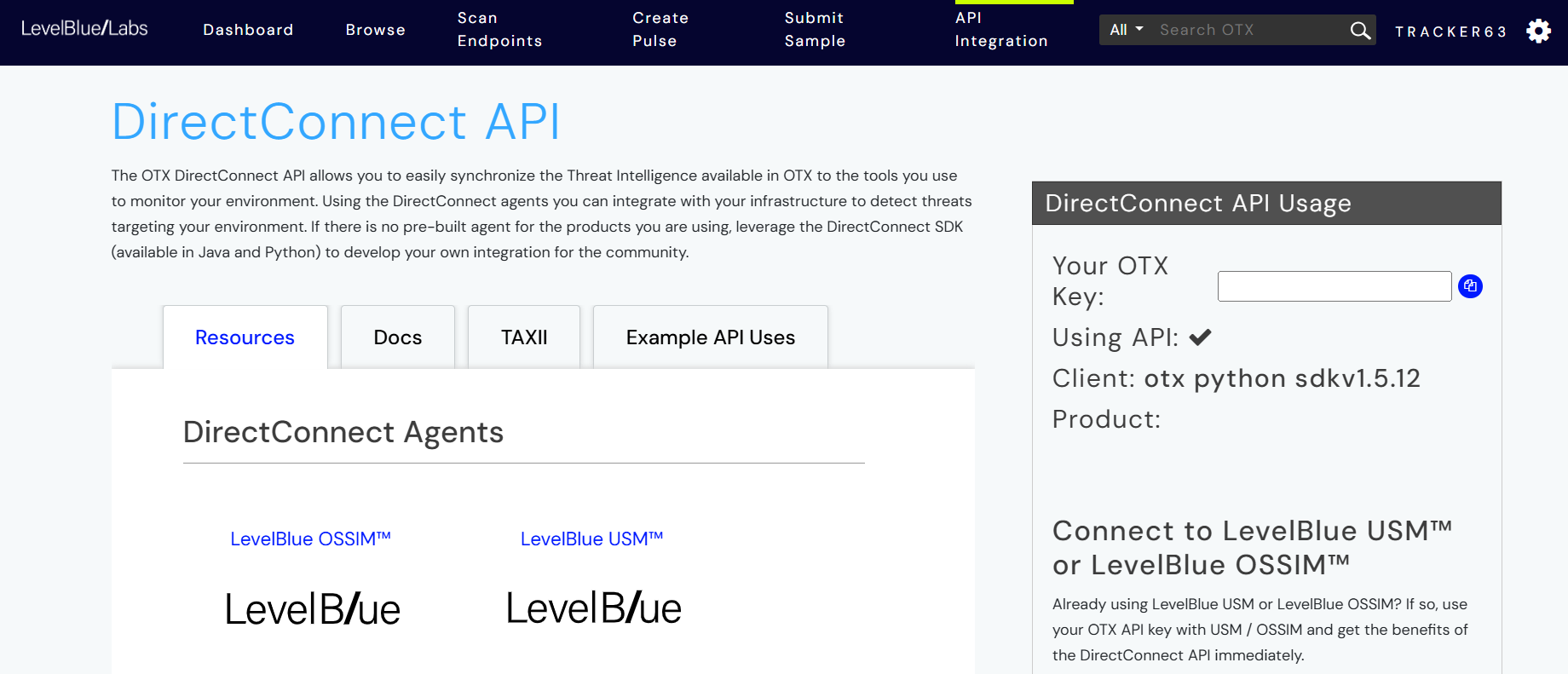
- From your dashboard, navigate to the API Key section in the settings.
-
Copy the API Key:
- Locate and copy the API key provided in this section.
- Locate and copy the API key provided in this section.
-
Paste the API Key:
Enter the API key into the API Key field on the autobotAI platform to complete the integration.
Once the API Key is added, test the integration to confirm functionality and connectivity with AlienVault OTX.