
Overview
The CyberMindr integration enables autobotAI to leverage CyberMindr's Continuous Threat Exposure Management (CTEM) and Attack Path Discovery capabilities. It automates external asset discovery, validates vulnerabilities across 30+ OSINT sources, and provides risk-prioritised remediation guidance accessible via REST API.
This guide provides instructions for setting up the CyberMindr integration in your autobotAI account.
Prerequisites
Before starting, ensure you have:
- An active CyberMindr account/tenant.
- A CyberMindr API Key with sufficient permissions.
- Your CyberMindr tenant Base URL.
Instructions for retrieving your API key can be found in the Additional Information section.
Steps to Set Up CyberMindr Integration
Step 1:
Navigate to the Integrations page by selecting Integrations from the menu. Click the + Add Integration button in the top-right corner to view available integrations.

Step 2:
From the list, under Security Tools, select CyberMindr + Add to create the CyberMindr integration.
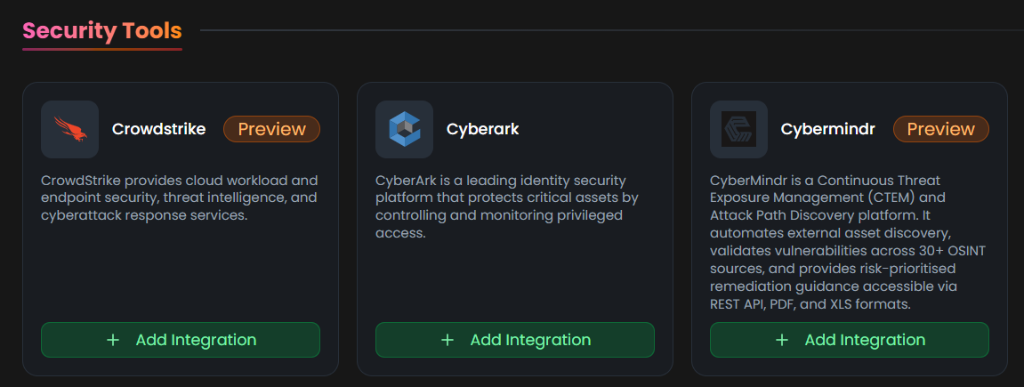
Step 3:
Fill in the required fields as follows:
Note: Fields marked with an asterisk (*) are mandatory.
-
Alias: Provide a meaningful name or alias for this integration (e.g.,
CyberMindr-Sec). -
Tag(Optional): Choose a tag to help organize the integration.
-
Base URL: The URL of your CyberMindr tenant platform (e.g.,
https://app.cybermindr.com). -
API Key: Enter your CyberMindr API Key.
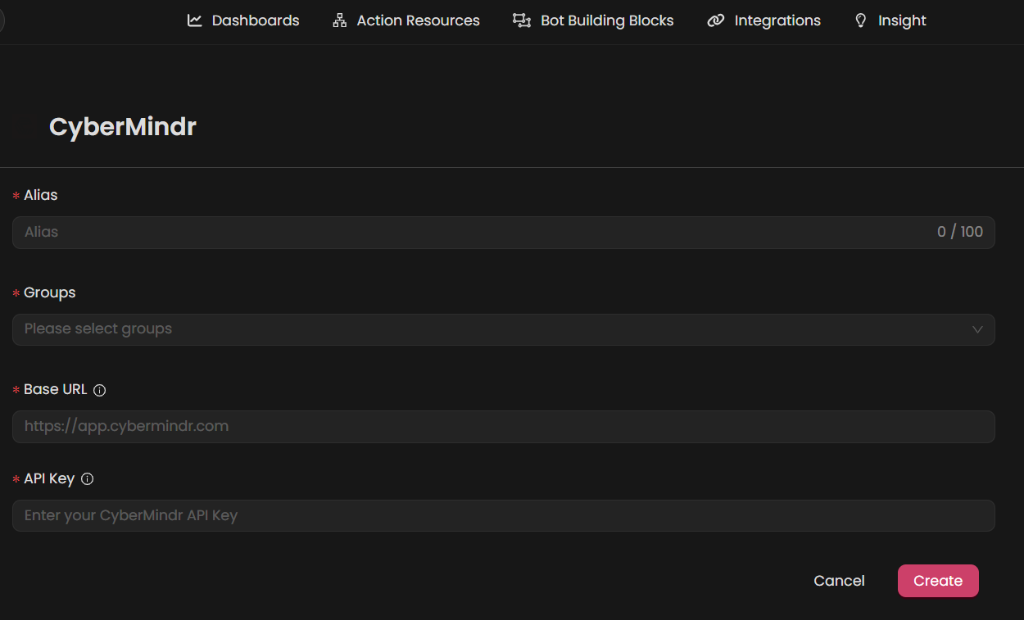
Double-check the information, then click Create to complete the integration.
After creating the integration, locate it under Integrations. Click the Play (▶) button in the Actions column to test and ensure your integration is configured correctly with autobotAI.

Additional Information
How to Retrieve CyberMindr API Key
To get your CyberMindr API Key, follow these steps:
-
Log in to CyberMindr:
- Go to your CyberMindr tenant URL and sign in with your account credentials.
-
Access API Settings:
- Navigate to Settings → API.
-
Generate the API Key:
- Click Generate New API Key or Add API Key.
- Copy the key directly from the dashboard immediately, as it may not be visible again.
-
Paste the API Key:
- Enter the API key into the API Key field on the autobotAI platform to complete the integration.
Once the API Key is added, test the integration to confirm functionality and connectivity with CyberMindr.