
Overview
The Symphony Summit integration allows autobotAI to connect with your SymphonyAI Summit (formerly Symphony SummitAI) ITSM platform, enabling automated ticket creation, incident management, and service request workflows. Symphony Summit is an enterprise-grade IT Service Management (ITSM) platform that helps organizations streamline IT operations, manage incidents, and track service requests through a centralized system.
By integrating Symphony Summit with autobotAI, you can automate incident responses, create and update tickets programmatically, and orchestrate IT workflows from your autobotAI bots.
Prerequisites
Before you begin, ensure you have:
- A Symphony Summit Account with administrative access.
- Your Symphony Summit Instance URL (e.g.,
https://<your-instance>.symphonysummit.com). - An API Key for authentication. (Refer to the Additional Information section below for details on generating an API Key.)
Steps to Set Up Symphony Summit Integration
Step 1:
Navigate to the Integrations page in autobotAI by selecting Integrations from the menu. Click the + Add Integration button located at the top-right corner to view all available integrations.

Step 2:
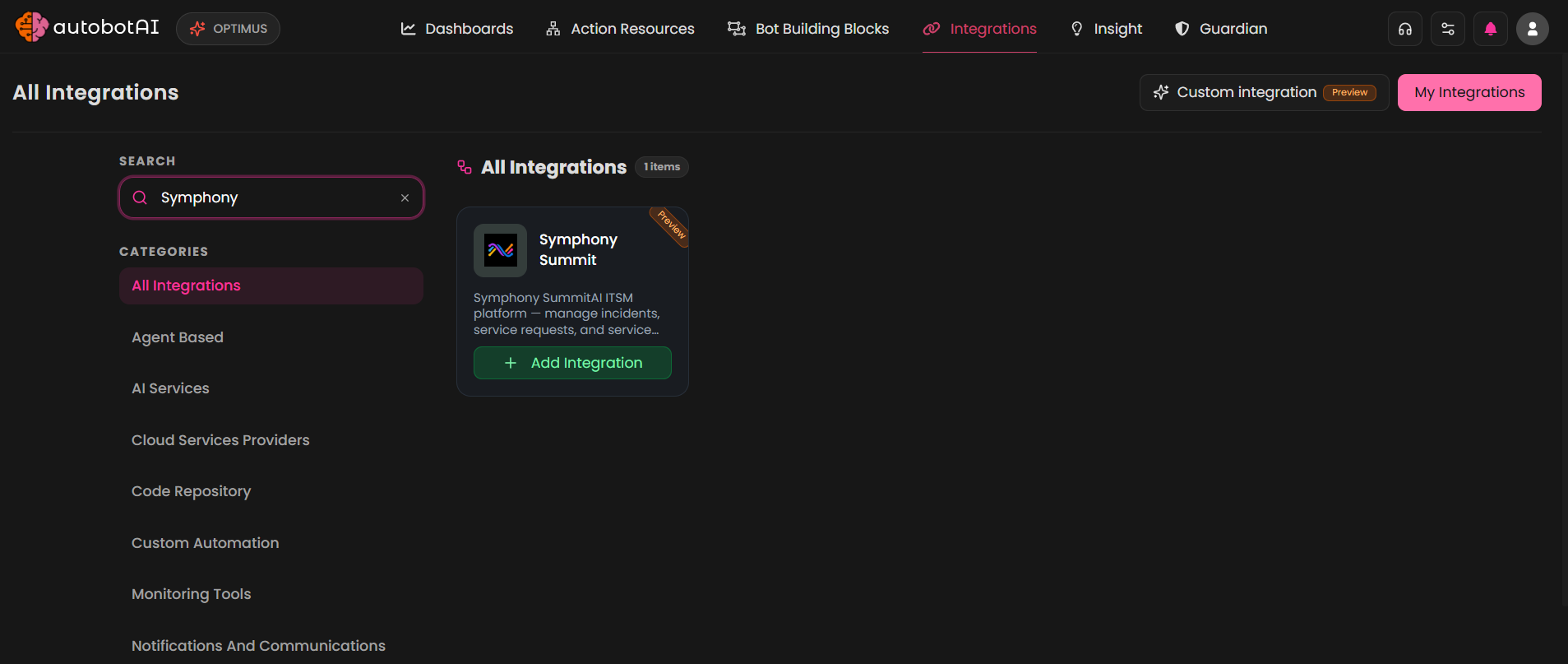
From the list, under the Notifications and Communications section, select Symphony Summit + Add to initiate the Symphony Summit integration setup.
Step 3:
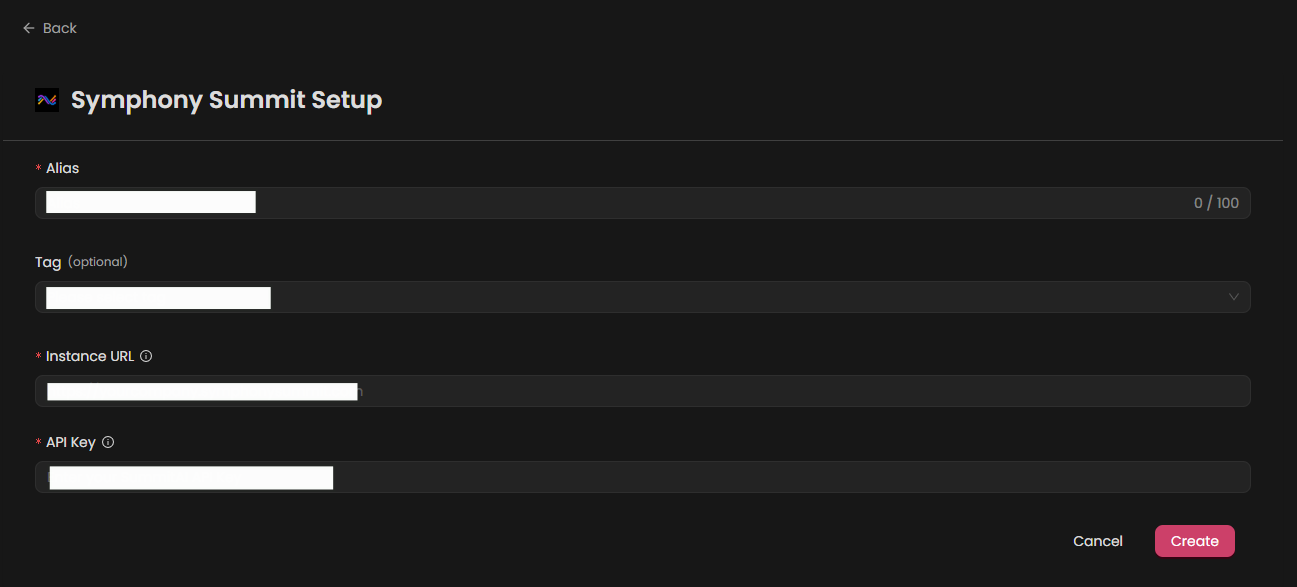
Fill in the following fields as required:
Note: Fields marked with an asterisk (*) are mandatory.
- Alias: Provide a meaningful name or alias for this integration.
- Tag(Optional): Choose a tag to help organize the integration.
- Instance URL: Enter your Symphony Summit instance URL (e.g.,
https://<your-instance>.symphonysummit.com). - API Key: Enter the API key generated from your Symphony Summit account for authentication.
After entering the required details, click Create to complete the setup.
Step 4:
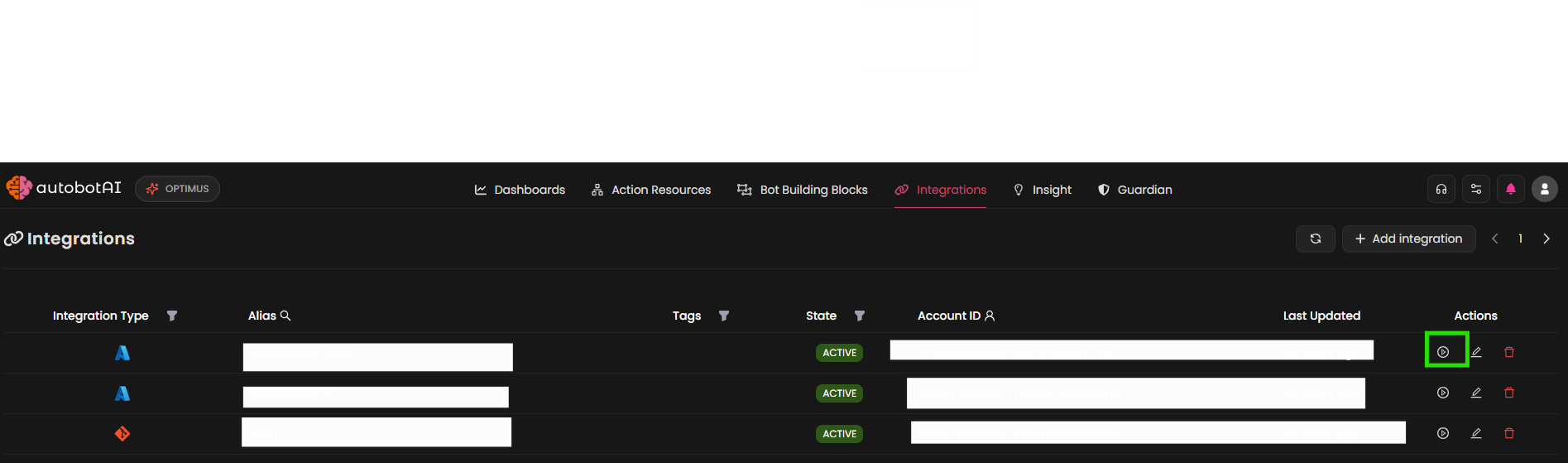
Once the integration is created, locate it under Integrations. Click the Play icon under the Actions column to test the integration and verify that autobotAI is successfully connected to your Symphony Summit account.
Additional Information
How to Generate a Symphony Summit API Key
-
Log into the SummitAI application
Ensure you are signed in as an admin. -
Navigate to User Management
Go to Admin > Basic > Users > User List.
The USER LIST page is displayed. -
Create a New API User
Click ADD NEW on the ACTIONS panel.
The NEW USER page is displayed. -
Configure User Details
- Select the Domain and specify the User Name.
- On the General tab, fill in all the required details.
- On the Access tab, set the Login Type to API Key.
The API Key of the selected Domain is picked up by the application by default. - Specify the API Key Expiry date.
- Select the Role Template from the list, and make sure the API can access the required departments.
-
Save the User
Click SUBMIT. -
Note down your credentials
Copy and securely store the generated API Key, Proxy ID, and Org ID.
These credentials are required for connector configuration in autobotAI.
Paste the API Key into the corresponding field in autobotAI during the integration setup.
Note: Ensure the Role Template assigned to the API user has the appropriate permissions to access the specific modules and departments you intend to use. Insufficient permissions may result in authentication errors or restricted API responses.