
Overview
The Microsoft Office 365 integration allows autobotAI to connect with Microsoft's cloud-based productivity suite, enabling automated workflows across applications like Outlook, Teams, SharePoint, OneDrive, Excel, and Word. Microsoft Office 365 is a comprehensive cloud platform that provides businesses and individuals with essential productivity tools, collaboration features, and secure cloud storage, all accessible from anywhere with an internet connection. By integrating with Office 365, autobotAI can automate tasks such as email management, calendar scheduling, document processing, team notifications, and file organization, helping users streamline their workflows and boost productivity across their Microsoft ecosystem.
This guide provides instructions for setting up the Microsoft Office 365 integration in your autobotAI account. By completing this process, you will connect your Microsoft Office 365 account and its associated resources to the platform.
Prerequisites
Before starting, ensure you have:
- A Microsoft Office 365 account with the necessary administrative privileges.
Steps to Set Up Microsoft Office 365 Integration
Step 1:
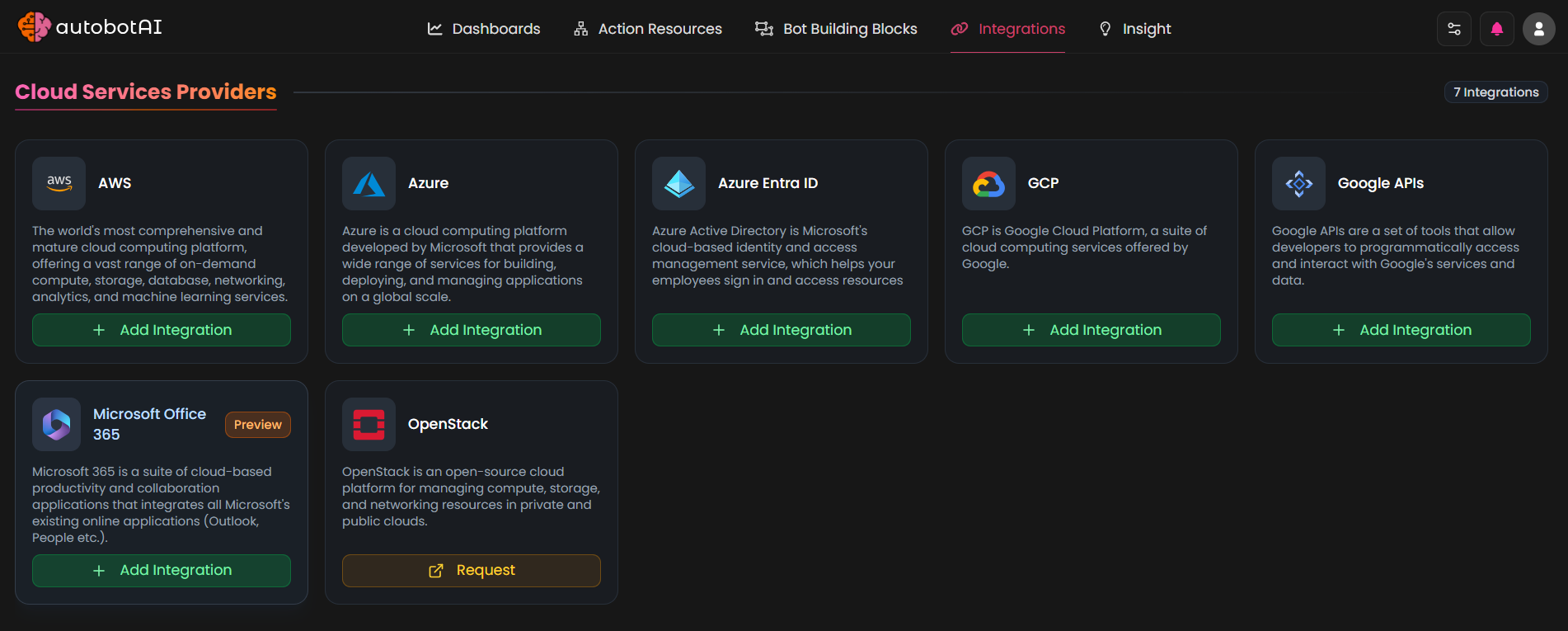
Navigate to the Integrations page by selecting Integrations from the menu. Click the + Add Integration button in the top-right corner to view available integrations.

Step 2:
From the list, under the Cloud Services Providers section, select Microsoft Office 365 + Add to initiate the Microsoft Office 365 integration setup.
Step 3:
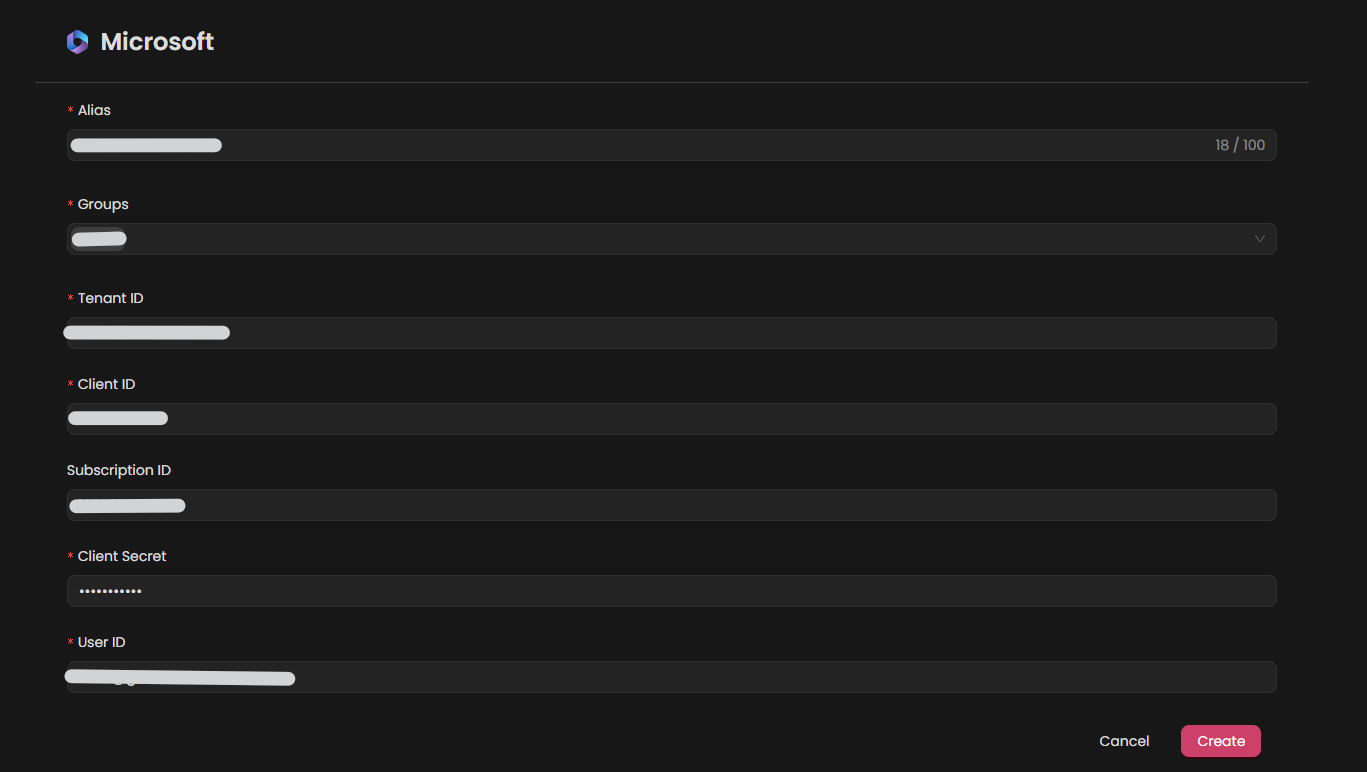
Fill in the required fields as follows:
Note: Fields marked with an asterisk (*) are mandatory.
- Alias: Provide a meaningful name or alias for this integration.
- Tag(Optional): Choose a tag to help organize the integration.
- Tenant ID: Enter your Microsoft tenant id
- Client ID: Enter your Microsoft client id
- Subscription ID: Enter your Microsoft subscription id
- Client Secret: Enter your Microsoft client secret
- User ID: Enter your Microsoft user id
Verify the information, then click Create to complete the integration.
Step 4:
After the integration is successfully created, locate it under Integrations. Click on the three dots on the left side and select Test to ensure your integration is properly configured with autobotAI.

Additional Information
How to Obtaining Client Credentials and Tenant ID for Office 365
To obtain client credentials and tenant ID, perform the following steps:
-
Log into Microsoft Azure Portal:
- Enter your Global Administrator username and password to sign in.
-
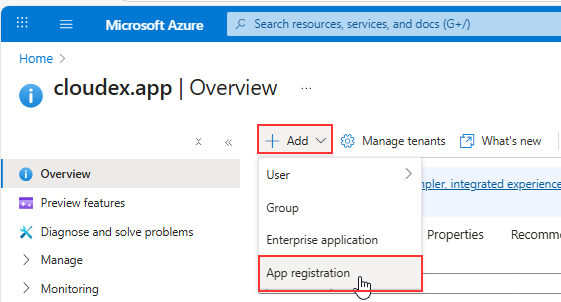
Create a new App Registration:
-
Left menu: App registrations
-
Click New registration
-
Fills the Details
-
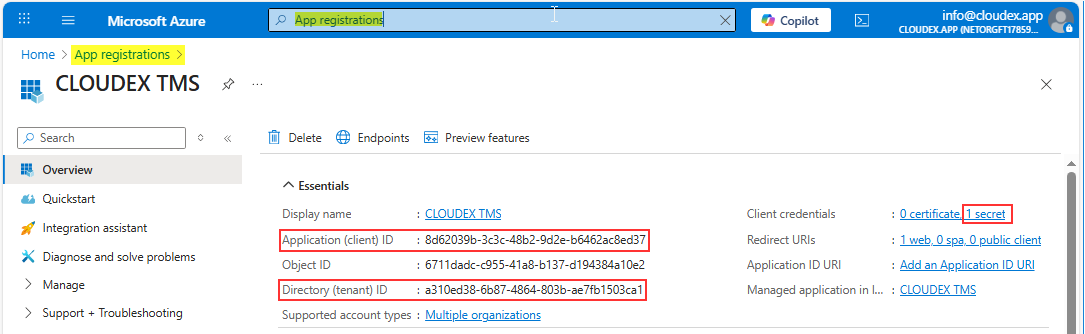
After creation, you will be redirected to the app’s Overview page. See the Directory (Tenant) ID and Application (Client) ID
-
-
Create Client Secret:
-
Side menu → Certificates & secrets
-
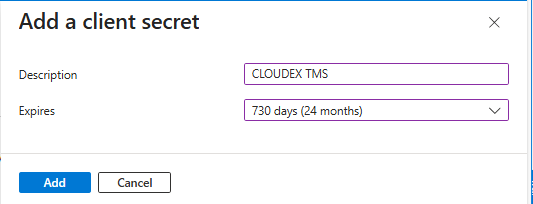
Click New client secret
-
Enter a name and Choose expiration
-
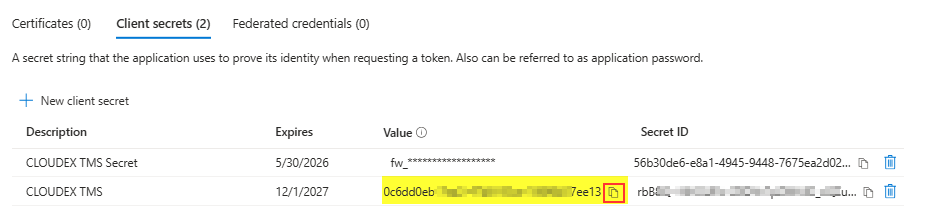
Click Add
-