
Overview
The GitHub App integration allows the autobotAI to securely interact with your GitHub repositories using your installed GitHub App. Through this integration, you can automate workflows such as pull-request handling, issue operations, and repository event monitoring.
This guide provides instructions for setting up an integration with GitHub App in your autobotAI account. By completing this process, you will connect your GitHub account and its associated resources to the platform.
Prerequisites
Before starting, ensure you have:
- A GitHub account with permission to install and manage GitHub Apps.
- A GitHub App already created (or the ability to create one).
- The following GitHub App credentials:
- GitHub App Installation ID
- Private Key
- Client ID
- GitHub Enterprise Base URL (Optional): Provide this value only if you are using GitHub Enterprise.
Instructions for retrieving these values are provided in the Additional Information section
Steps to Set Up GitHub App Integration
Step 1:
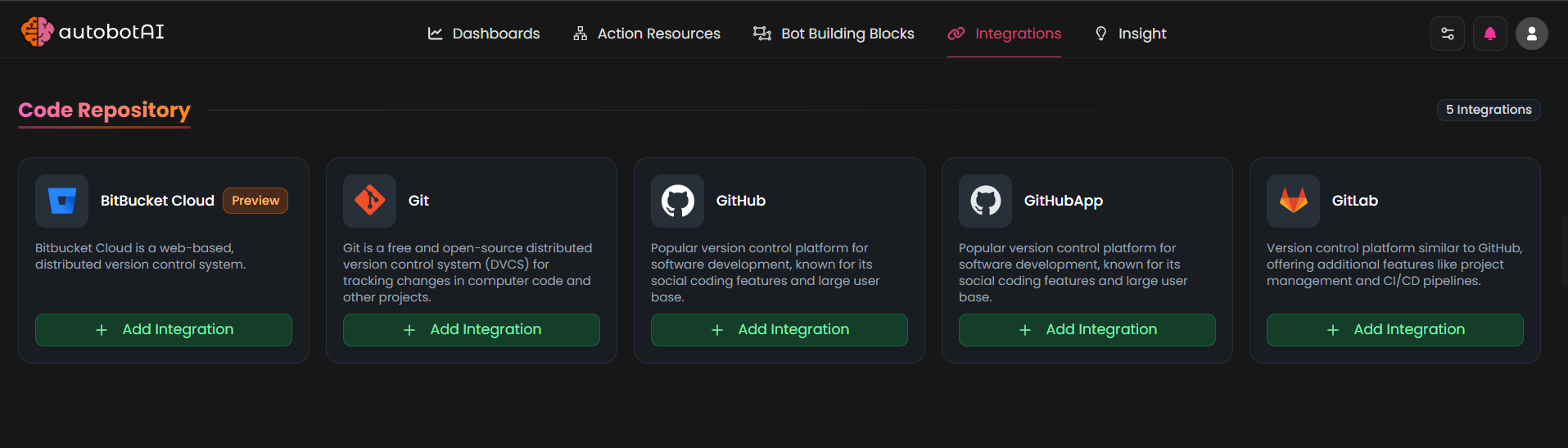
Navigate to the Integrations page by selecting Integrations from the menu. Click the + Add Integration button in the top-right corner to view available integrations.

Step 2:
From the list, under Code Repository, select Github App + Add to create the GithubApp integration.
Step 3:
Fill in the required fields as follows:
Note: Fields marked with an asterisk (*) are mandatory.
-
Alias: Provide a meaningful name or alias for this integration.
-
Tag(Optional): Choose a tag to help organize the integration.
-
GitHub Base URL:
- If you are using public GitHub, keep the default API URL: https://api.github.com.
- If you are using GitHub Enterprise, enter your organization’s GitHub Enterprise base URL instead.
-
GitHub Installation ID: Enter the Installation ID generated when the GitHub App is installed on your account or organization
-
GitHub Private Key: Paste the Private Key (.pem) you generated for your GitHub App.This private key is used for authentication. (If you are using Official GitHub app it’s not required)
-
GitHub Client ID: Enter the Client ID associated with your GitHub App. (If you are using Official GitHub app it’s not required)
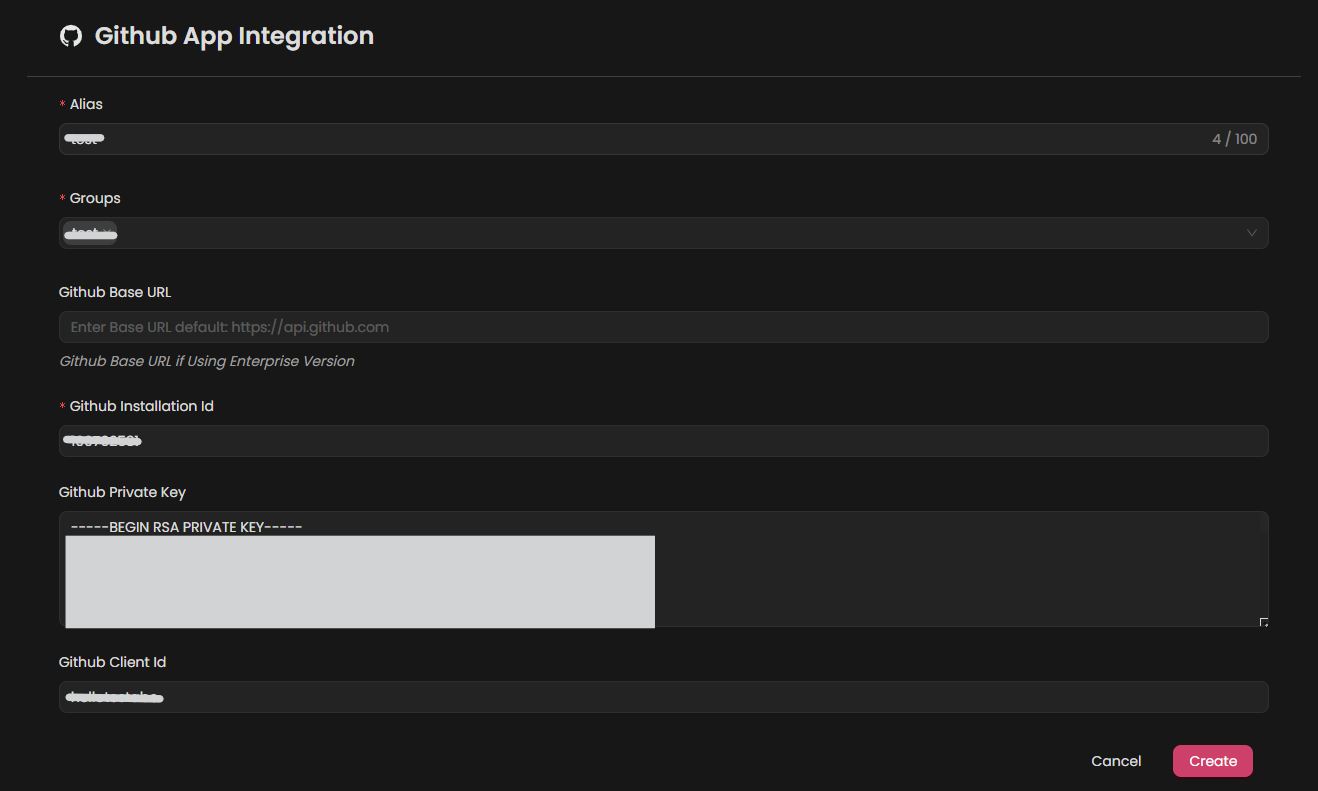
Double-check the information, then click Create to complete the integration.
Step 4:
After creating the integration, locate it under Integrations. Click on the three dots next to it, select Test, and ensure your integration is configured correctly with autobotAI.

Additional Information
How to Retrieve GitHub App Credentials
-
Log in to Github:
Go to Github and sign in with your Github credentials.
-
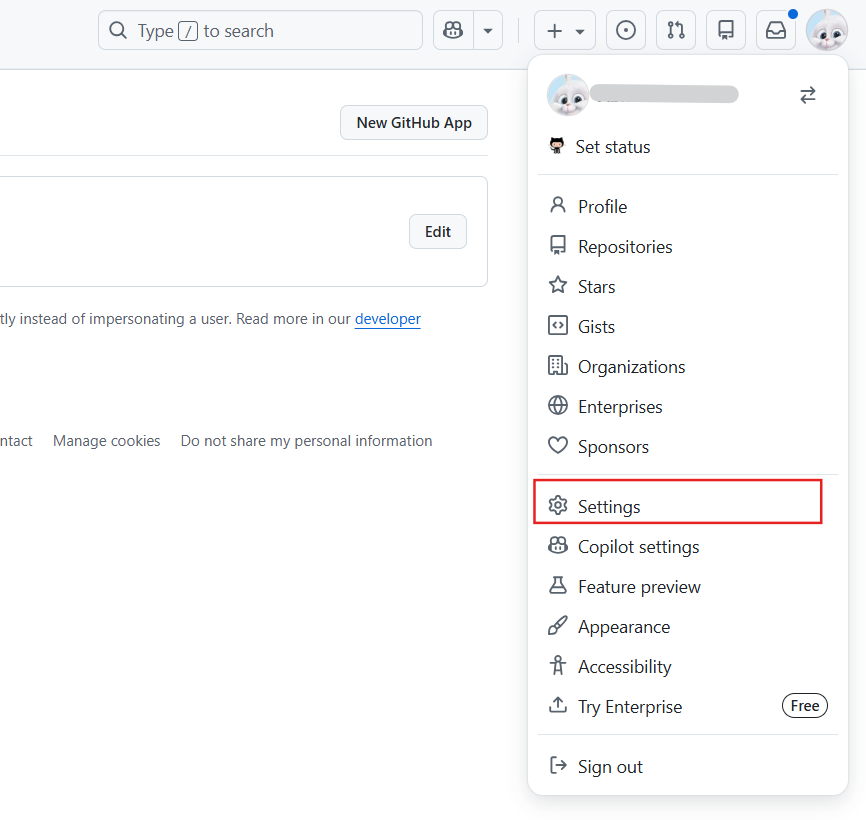
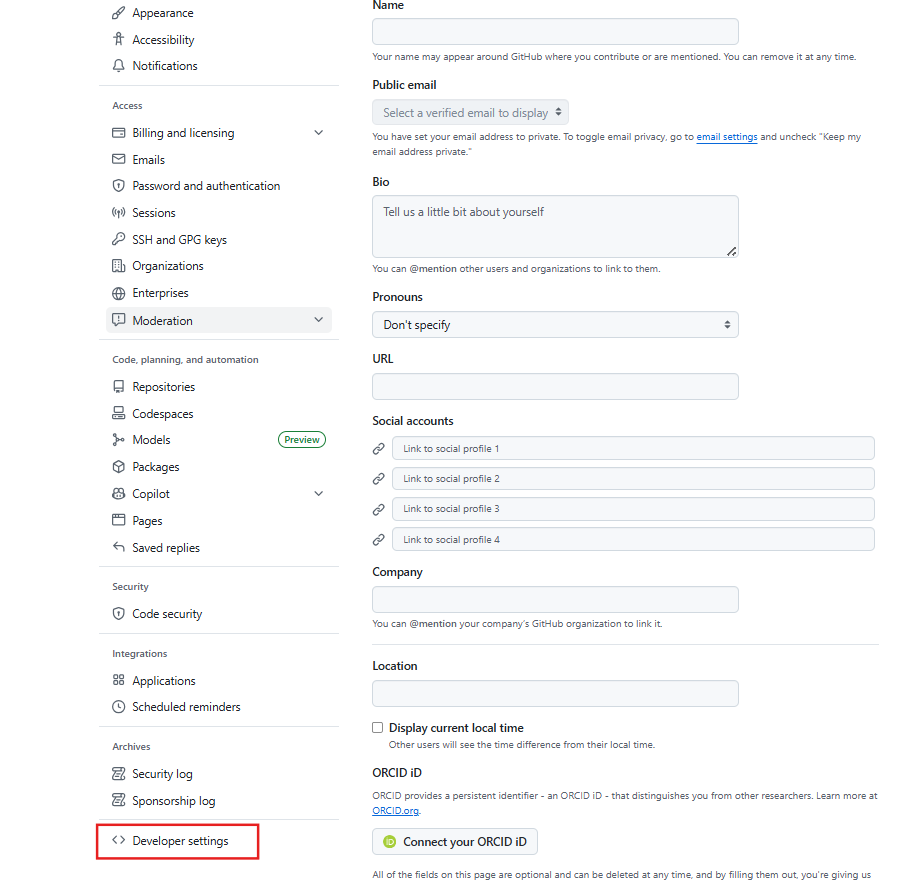
Open GitHub App Settings:
-
Click your profile picture → Settings.
-
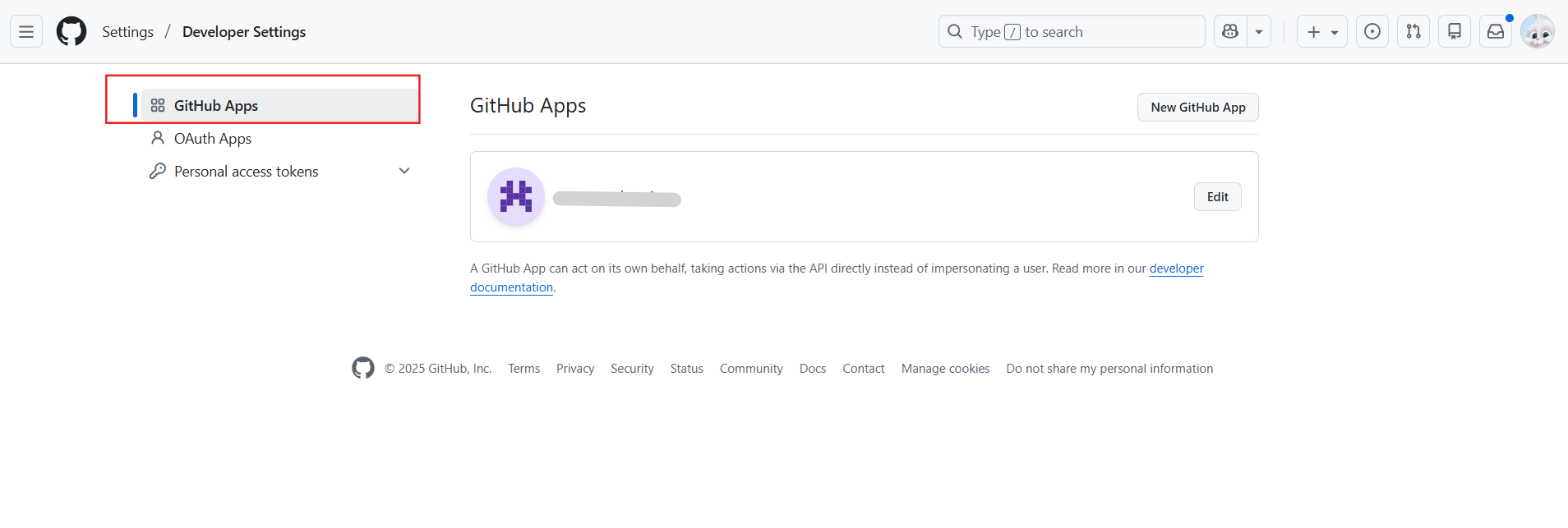
Scroll to Developer settings → GitHub Apps.
-
Select your GitHub App.
-
-
Retrieve the Required Values:
-
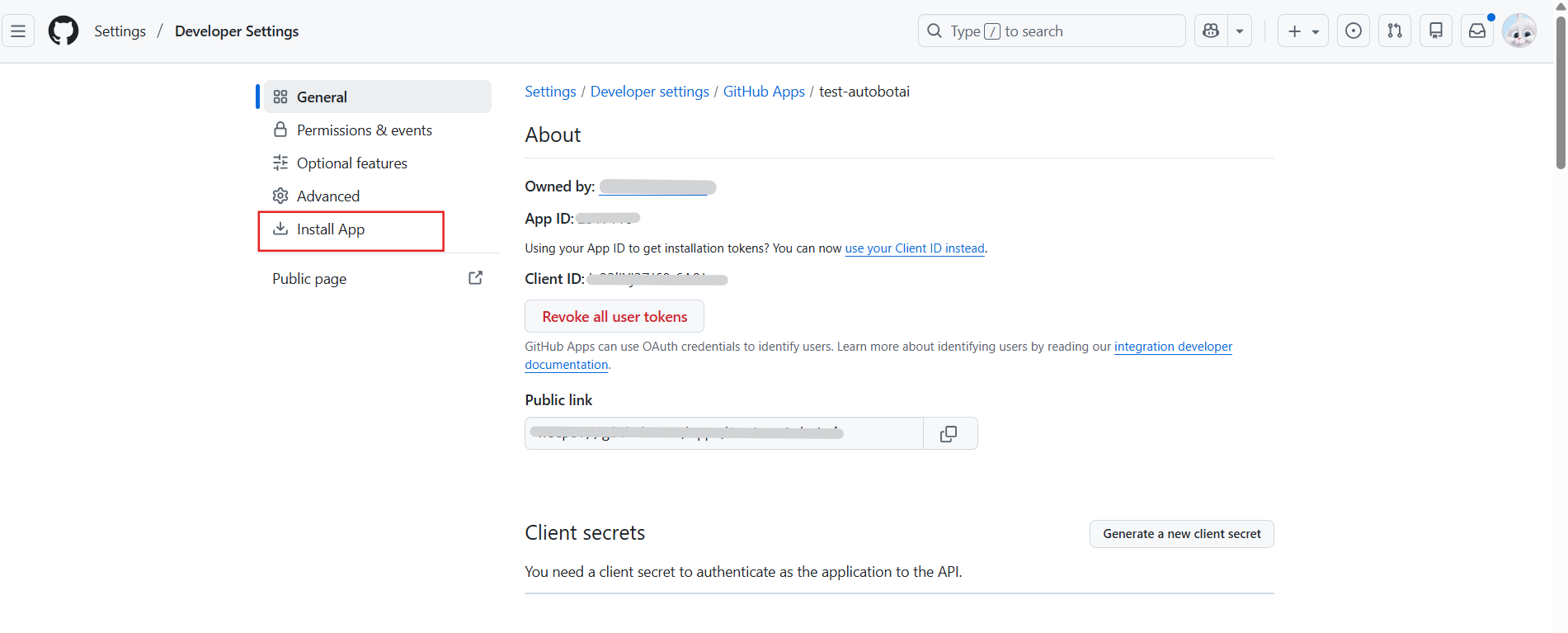
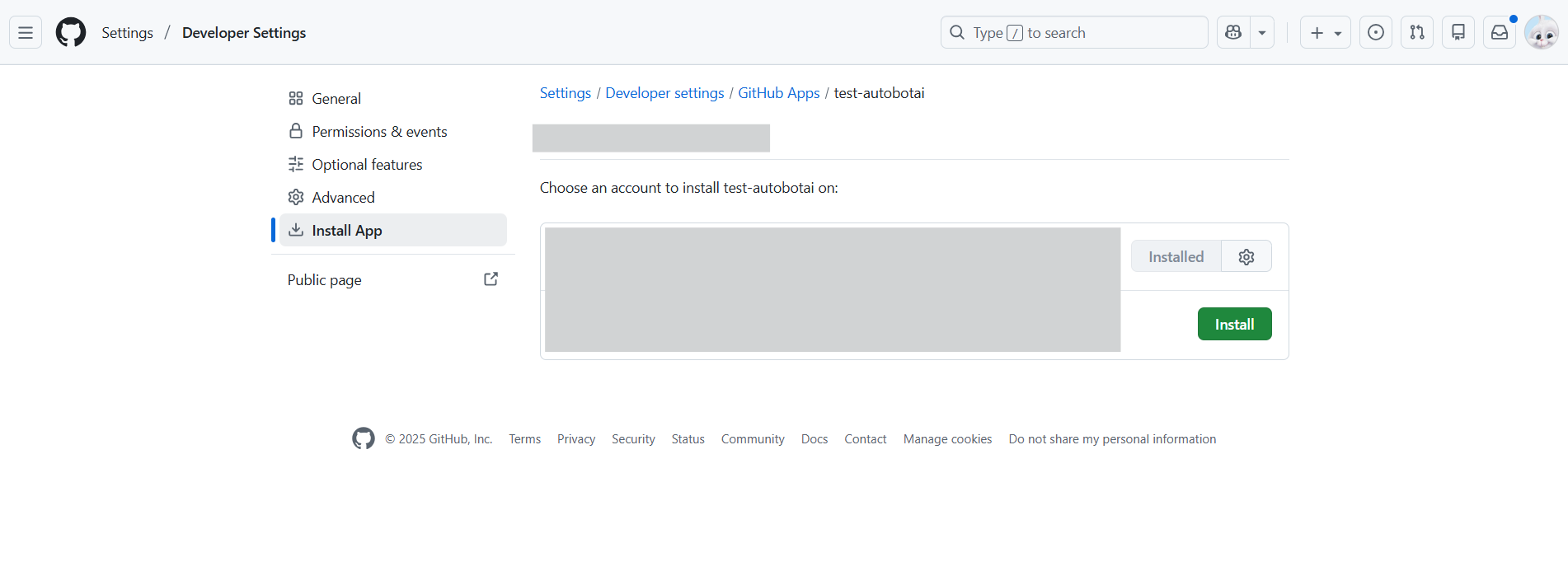
In your GitHub App page, go to Install App.
-
Click Install (or select an existing installation (Settings Icon)).
-
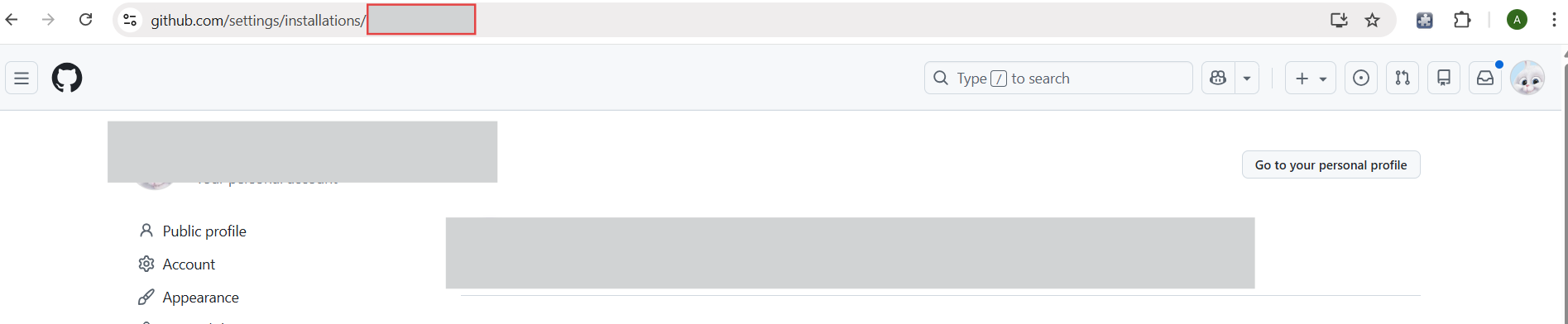
In the URL of the installation page, you will see:
https://github.com/settings/installations/12345678(Installation ID : 12345678) -
Client ID is generated automatically and can be obtained from the GitHub App details page after the app is created.
-
The Private Key can be generated from the GitHub App settings page by clicking Generate a private key, after which the key file is automatically downloaded.
-