
Overview
The BitBucket Cloud integration allows autobotAI to connect with Atlassian's cloud-based Git repository management platform, enabling automated code repository monitoring, pull request analysis, and CI/CD pipeline integration for streamlined development workflows.
This guide provides instructions for setting up an integration with BitBucket Cloud in your autobotAI account. By completing this process, you will connect your BitBucket Cloud account and its associated resources to the platform.
Prerequisites
Before starting, ensure you have:
- A BitBucket Cloud Account with the necessary administrative privileges
Steps to Set Up BitBucket Cloud Integration
Step 1:
Navigate to the Integrations page by selecting Integrations from the menu. Click the + Add Integration button in the top-right corner to view the list of available integrations.

Step 2:
From the list, under the Code Repository section, select BitBucket Cloud + Add to Create the BitBucket Cloud integration.

Step 3:
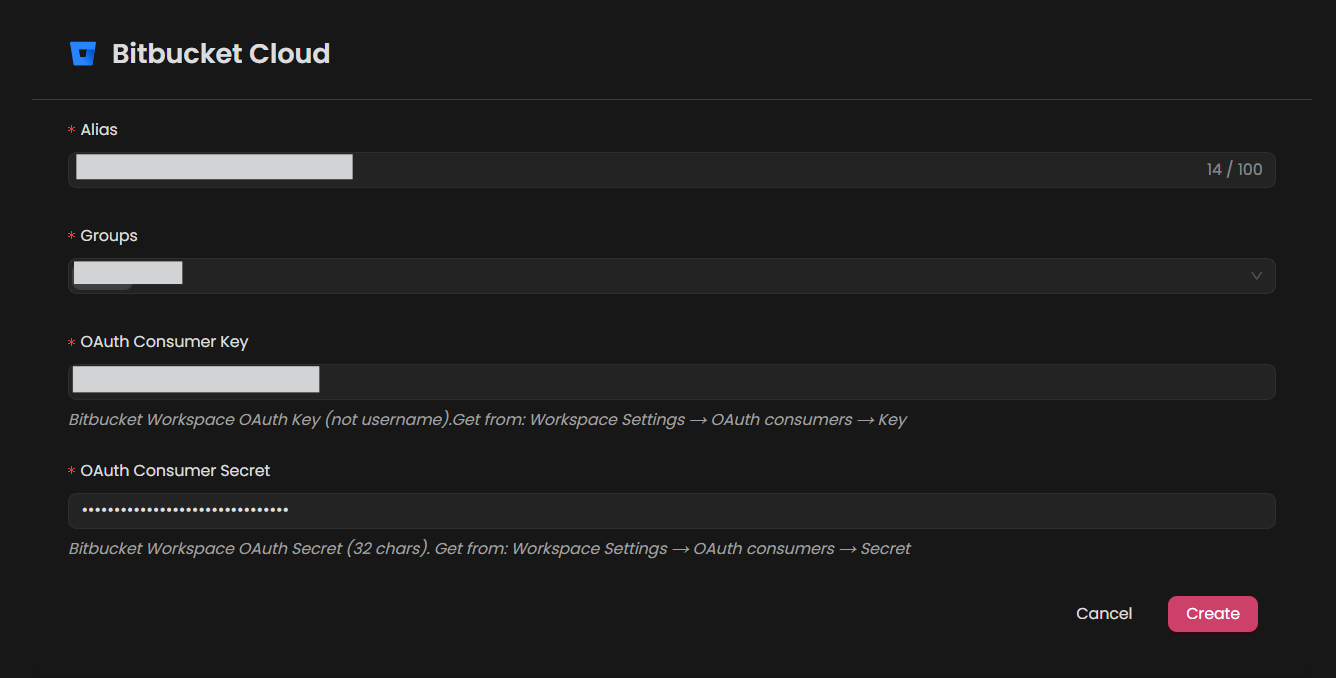
Fill in the required fields according to your integration type:
Note: Fields marked with an asterisk (*) are mandatory.
- Alias: Provide a meaningful name or alias for this integration.
- Tag(Optional): Choose a tag to help organize the integration.
- OAuth Consumer Key: Enter your Bitbucket Workspace OAuth Key (not username).
- OAuth Consumer Secret: Enter your Bitbucket Workspace OAuth Secret (32 chars)
Verify the information, then click Create to complete the integration.
Step 4:
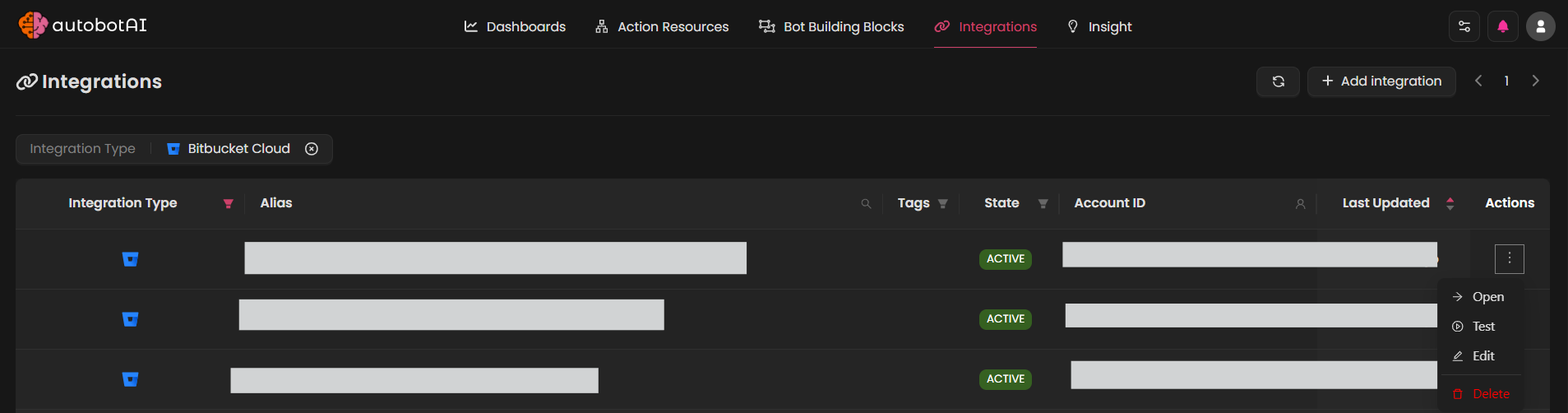
After the integration is successfully created, locate it under Integrations. Click on the three dots on the left side and select Test to ensure your integration is properly configured with autobotAI.
Additional Information
How to Get Oauth Consumer Key and Secret:
-
Login Atlassian Account:
-
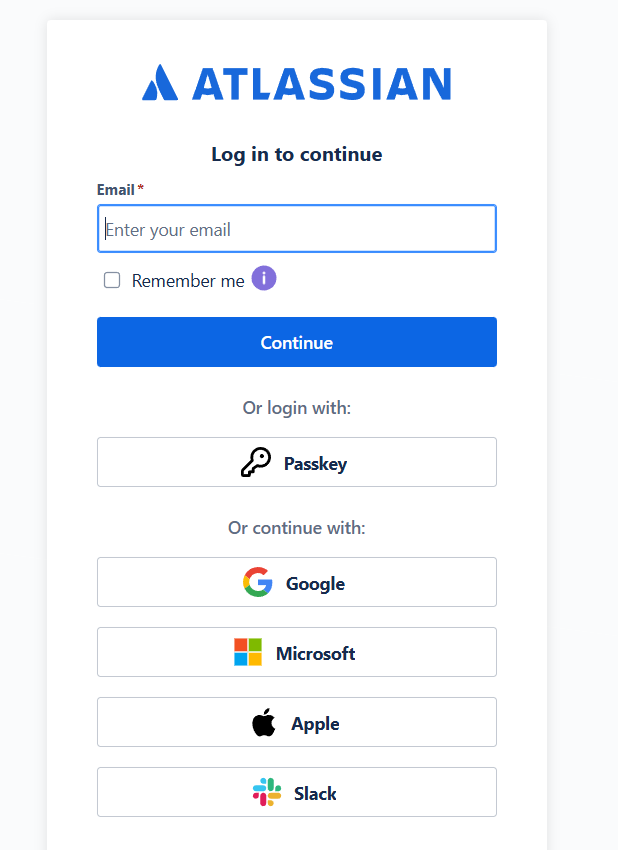
If you have a Atlassian account, go to Atlassian Otherwise, create a new account and login it.
-
-
Get Oauth Consumer Key and Secret:
-
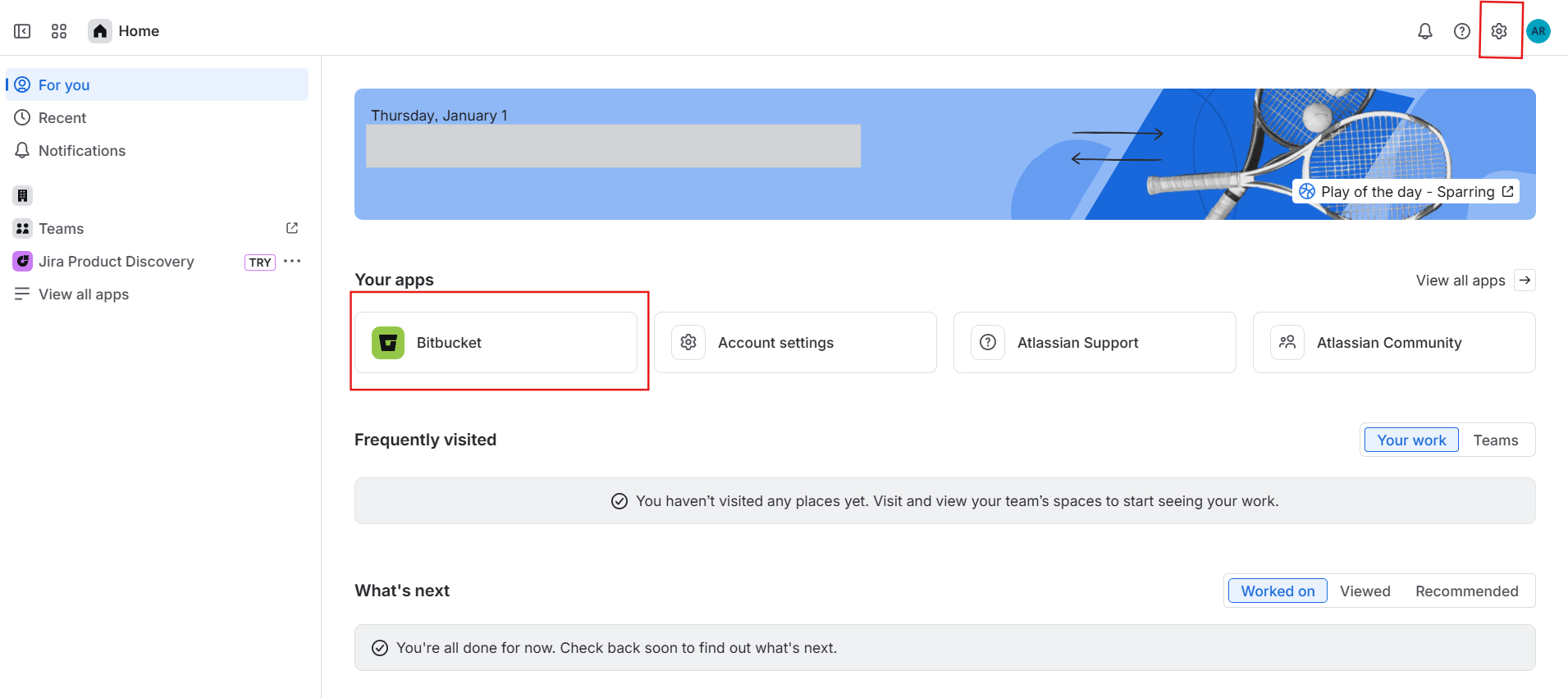
After logging in, navigate to the Atlassian Home Page, locate the 'Your Apps' section, and click on the Bitbucket app to access it
-
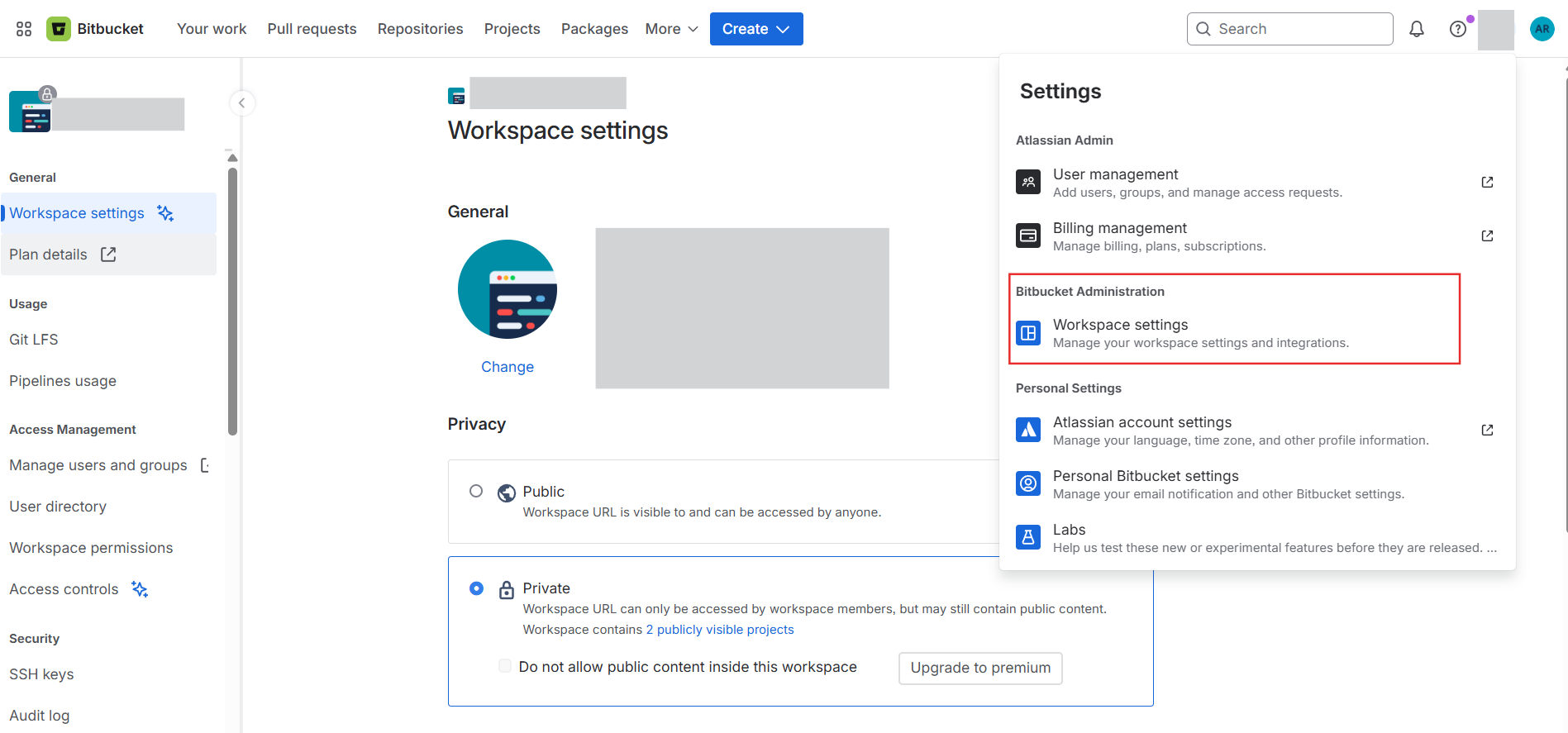
Click the Settings icon, then navigate to the Bitbucket Administration section and select the Workspace settings option
-
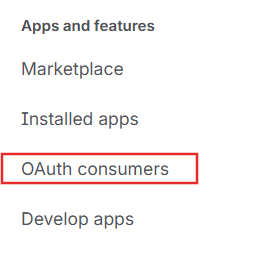
In the left sidebar, locate the Apps and features section and click on the OAuth consumers option.
-
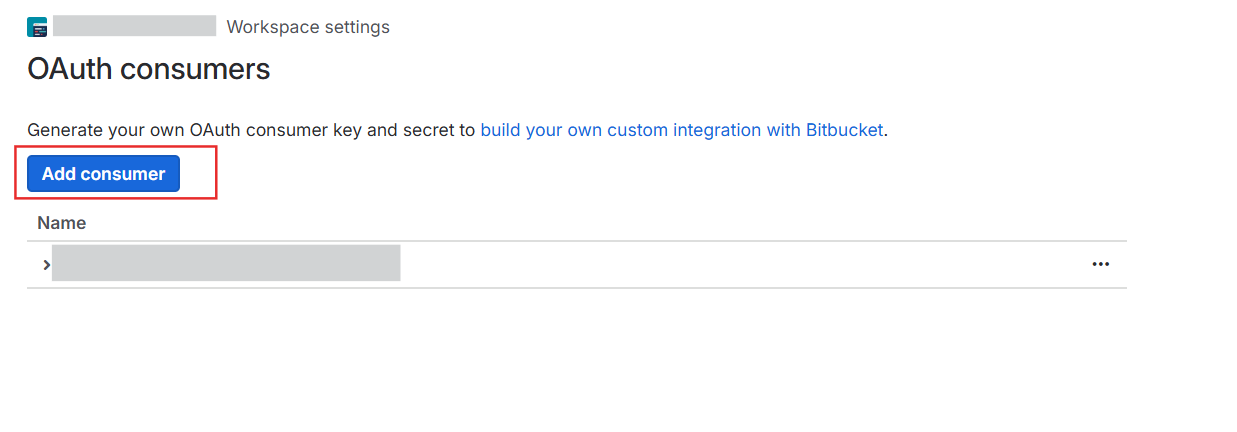
On the OAuth consumers page, click the Add Consumer button
-
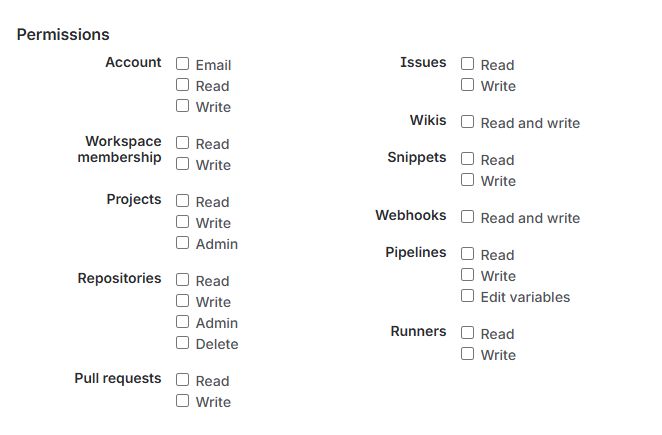
Complete the form by filling in all required details. Add your callback URL (for example:
https://bitbucket.org/site/oauth2/access_token), make sure the appropriate checkbox is selected, and assign permissions based on your application's scope requirements.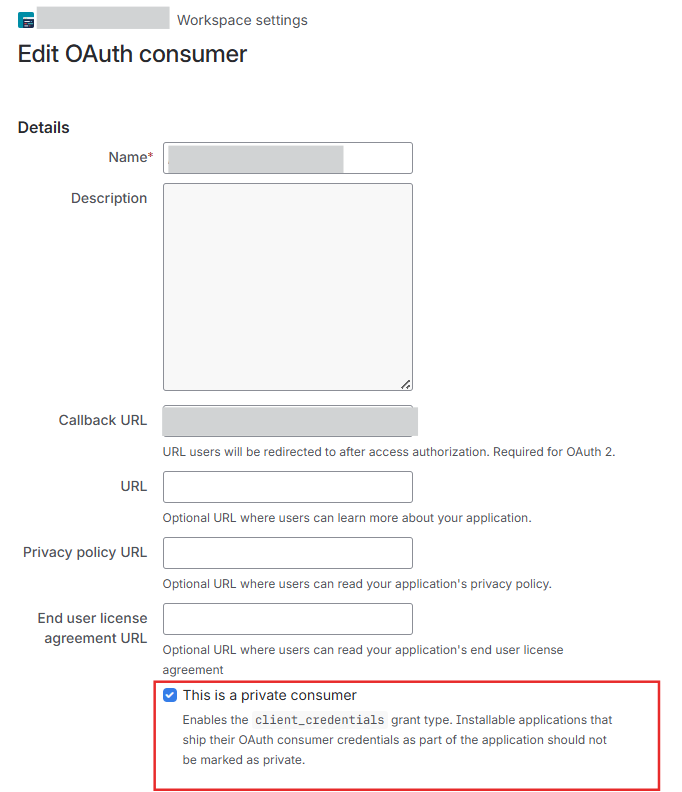
-
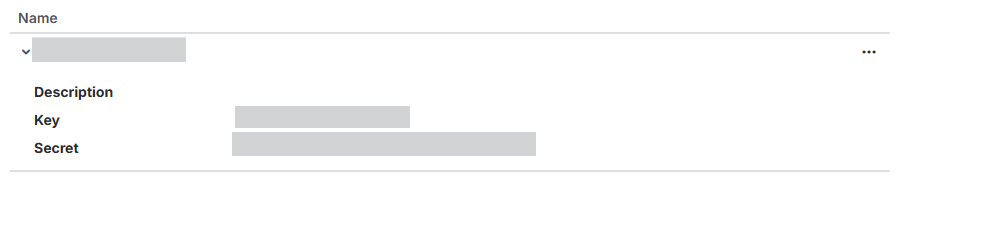
After saving, the system will generate a key and secret for your OAuth consumer.
-