
Overview
The Perplexity integration allows autobotAI to connect with Perplexity AI, an advanced AI-powered answer engine that combines real-time web search with natural language understanding. Perplexity delivers accurate, cited responses by searching the internet and synthesizing information from multiple sources. This integration enables autobotAI to leverage Perplexity's capabilities for research, fact-checking, and accessing current information with transparent source citations.
This guide provides instructions for setting up the Perplexity integration in your autobotAI account.
Prerequisites
Before starting, ensure you have:
- A Perplexity Account with the necessary administrative privileges
Steps to Set Up Perplexity Integration
Step 1:
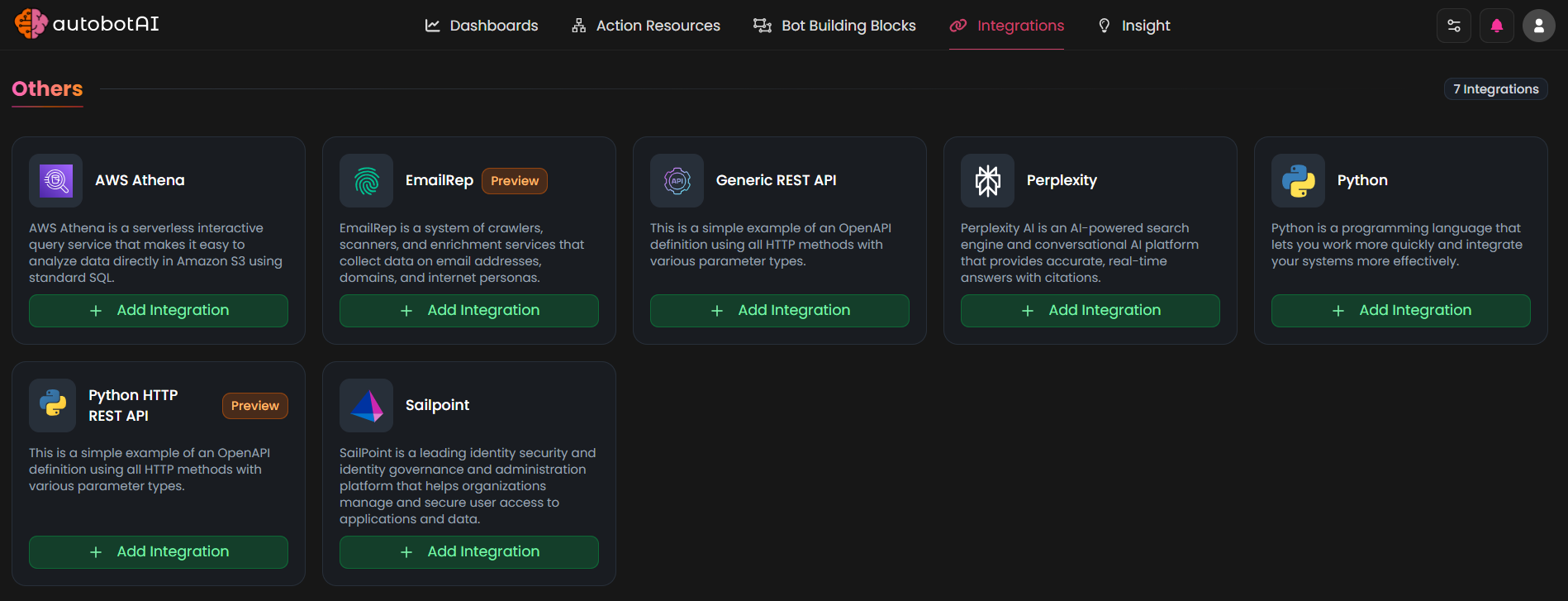
Navigate to the Integrations page by selecting Integrations from the menu. Click the + Add Integration button in the top-right corner to view the list of available integrations.

Step 2:
From the list, under the Others section, select Perplexity + Add to create the Perplexity integration.
Step 3:
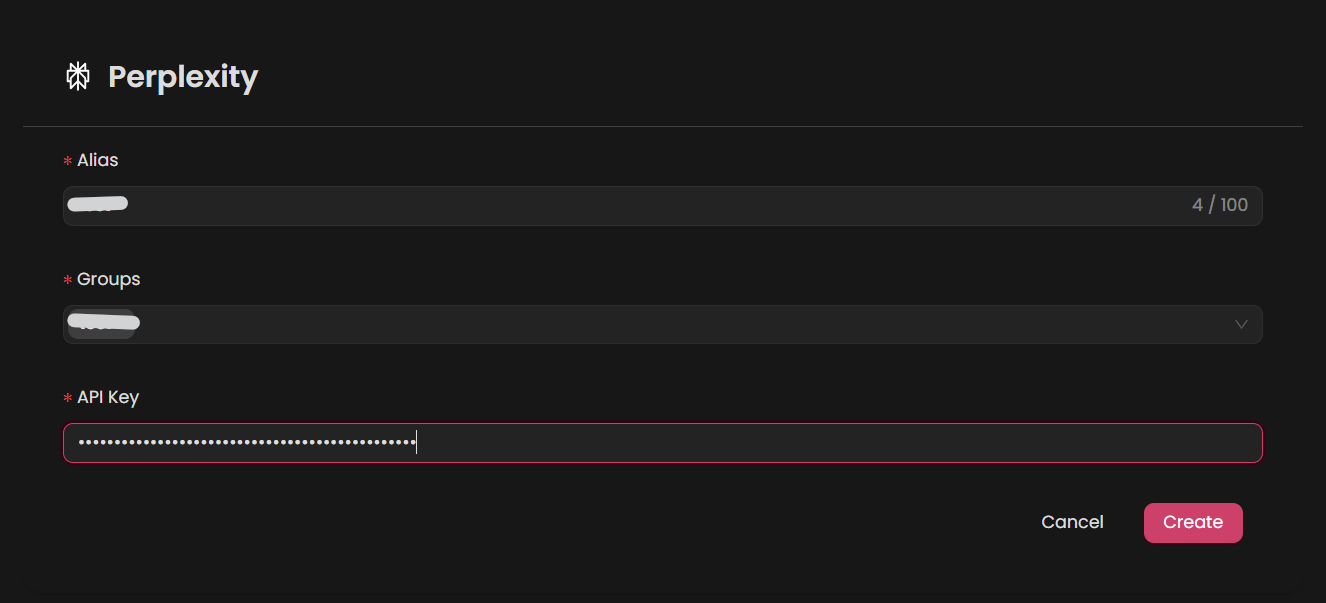
Fill in the required fields according to your integration type:
Note: Fields marked with an asterisk (*) are mandatory.
- Alias: Provide a meaningful name or alias for this integration.
- Tag(Optional): Choose a tag to help organize the integration.
- API Key: Enter your api key
Verify the information, then click Create to complete the integration.
Step 4:
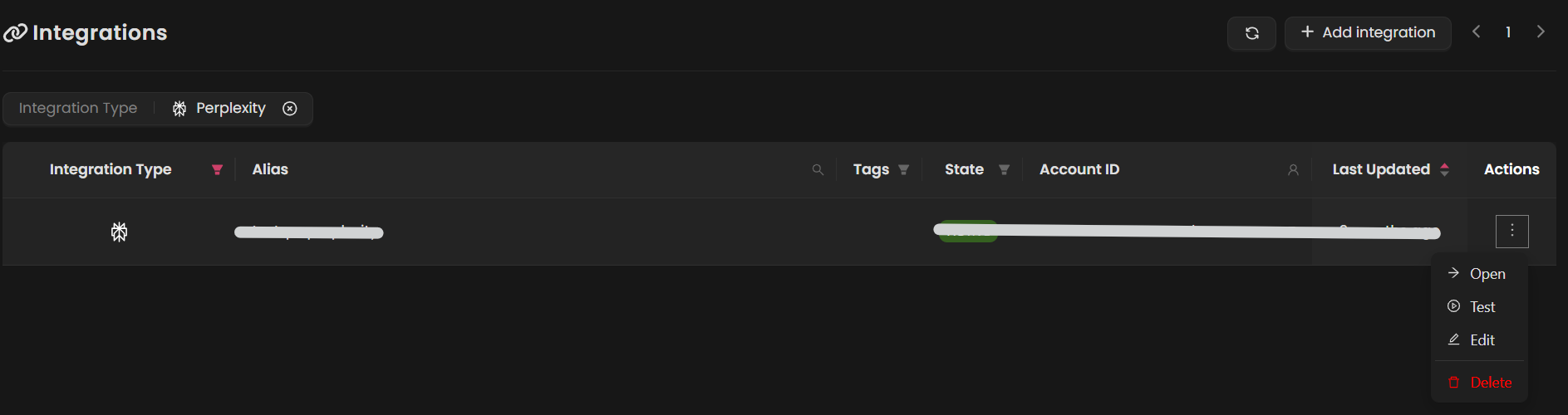
After the integration is successfully created, locate it under Integrations. Click on the three dots on the left side and select Test to ensure your integration is properly configured with autobotAI.
Additional Information
How to Retrieve Api key
-
Log into Perplexity Account:
- If you don't have an account, go to Perplexity and sign up for a new account. If you already have an account, enter your credentials to log in.
-
Access the API Console:
-
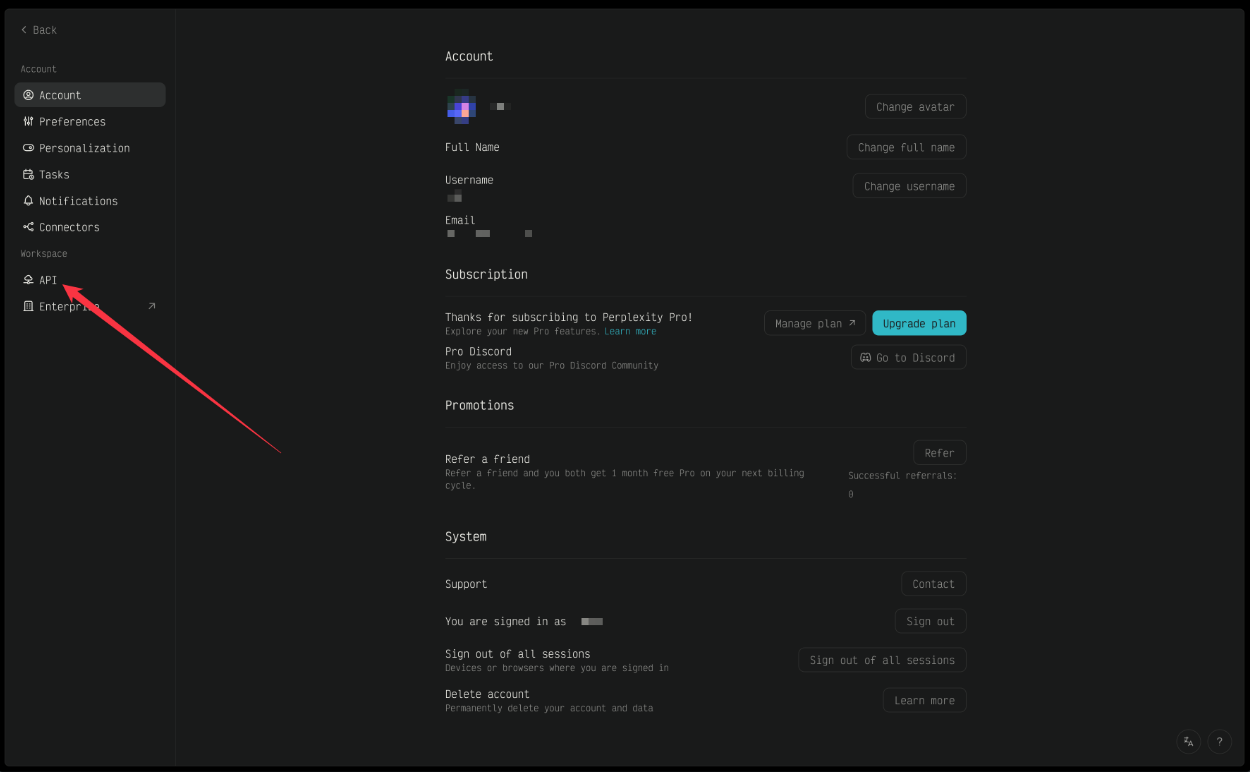
After logging in, click on your account icon, navigate to the settings console, and select the API option.
-
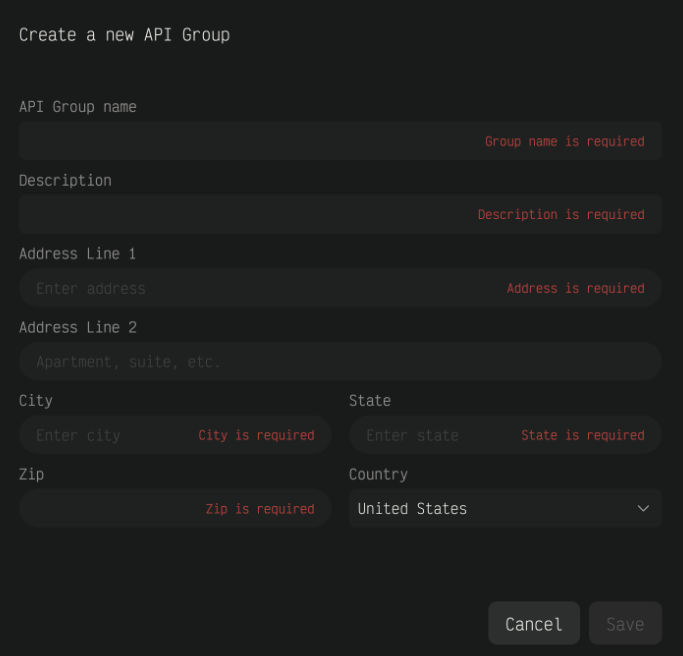
After selecting API, fill in the required details, complete your account setup, and configure the billing procedure
-
-
Navigate to API Keys Section:
-
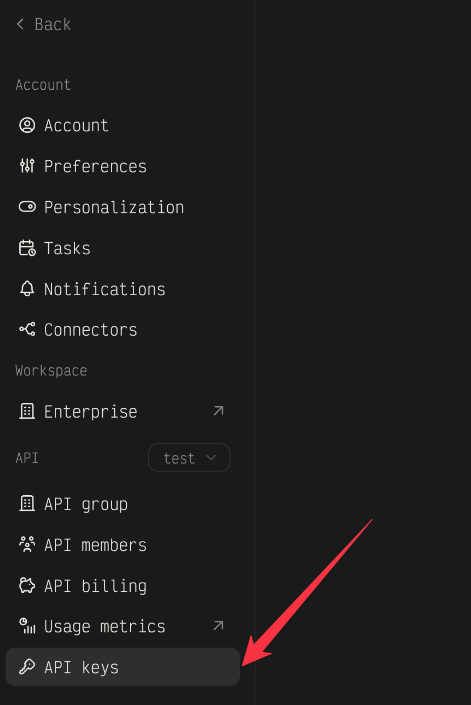
Select the API Keys option from the menu.
-
-
Generate Your API Key:
-
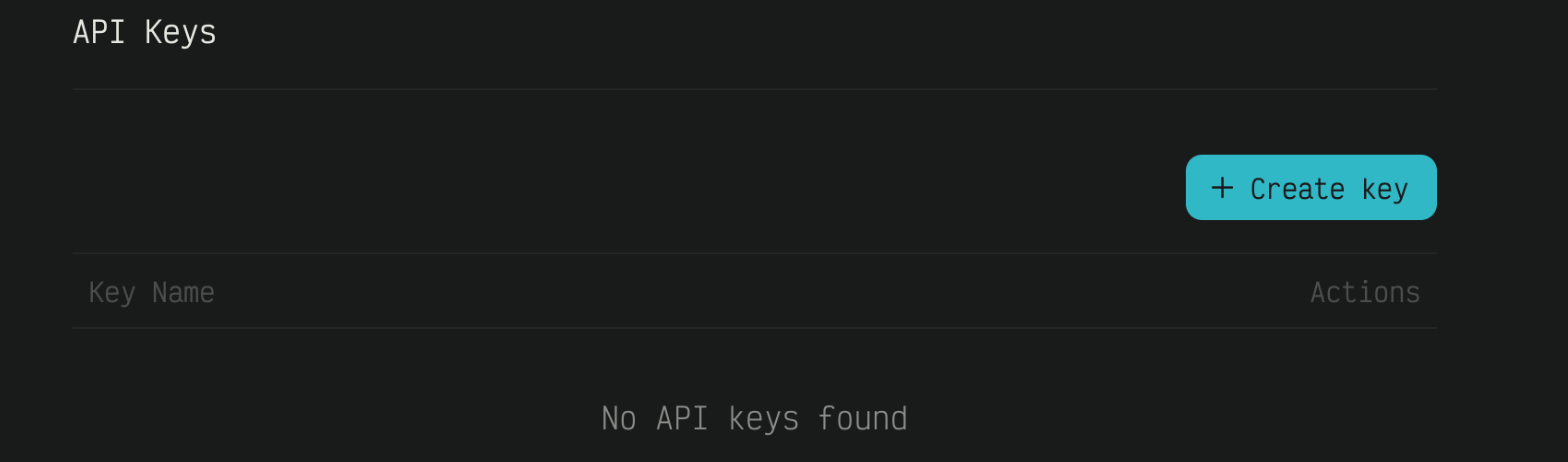
Click the "Create Key" button
-